How to Add a New Trade
FROM THE MAIN CATS SCREEN
Select the Business menu.
Select Trade.
Select New.

The Trade New screen will be displayed, as below.

Complete all relevant fields and values.
Enter the Entity from the drop-down box.
Enter the Trade Type from the drop-down box.
Enter the Source.
Enter the Trade Ref.
Enter the Stock.
Enter Cash.
Select Settle Ccy from the drop-down box.
Enter the Trade, Settle and Close Dates.
Select Save.
The procedure is the same as described in the HOW TO ADD A NEW TRADE in the ADDING POSITION TYPE section of the manual.
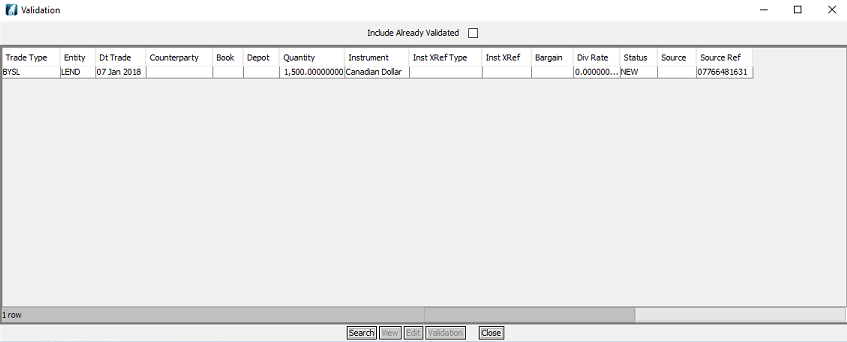
How to View Trade Validation
FROM THE CATS CA FILE
Select the Business menu.
Select Trade.
Select Validation.

The Validation screen will be displayed, as below.
How to View a Trade Search
Select the Business menu.
Select Trade.
Select Trade Search.

The Trade Search screen will be displayed, as below.

In the Options section type in the relevant information from the options available.
Select the Entity from the Entity drop-down list.
Type the instrument in the Instrument box.
Select the required Trade from the Trade Type drop-down list.
Type the quantity in the Quantity From and Quantity To box.
Insert the relevant dates in the Traded From and Traded To boxes.
Insert the relevant dates in the Close From and Close To boxes.
Select Reset tab to clear the search.
Type in Main Party or
Type in Counterparty or
Type in Depot.
Select Layout.
Select Search to do a search.
Select New to search for a new trade.
Select View to view.
Select Edit to edit.
Select Validate to validate.
Select Trade Cancel to cancel a trade.
Select Edit Postings to edit postings.
How to View a Trade IE Search
Select the Business menu.
Select Trade.
Select Trade-IE Search.

The Trade Input Event Search screen will be displayed, as below.
In the Options section type in the relevant information from the options available.

Select the Entity from the Entity drop-down list.
Type the instrument in the Instrument box.
Select the required Trade from the Trade Type drop-down list.
Type the quantity in the Quantity From and Quantity To box.
Insert the relevant dates in the Traded From and Traded To boxes.
Type in Main Party or
Type in Counterparty or
Type in Depot.
Select Reset tab to clear the search.
Select Layout.
Select Search to do a search.
Select New to search for a new trade.
Select View to view.
Select Edit to edit.
Select Delete to delete.
Company Confidential
