How to Find Claim Information
FROM THE MAIN CATS SCREEN
Select Search menu.
Select Claim Searches.
Select Claim Search.

The New Claim Search screen will be displayed, as below.

Enter a name in the Search Name field.

To select the business Entity.
Select Entity from the drop-down box.
To make the search available to all users.
Select Y from the Global drop-down box.

The types of claim are determined by selecting from the drop-down box.
Select Claim Type.

The corporate action type can be set to filter the search.
This is determined by selecting from the Event Type field displayed.
The claim status can be set to filter the search.
This is determined by selecting from the Process Status displayed.
To filter the list of claims based on the outstanding amount of the claim.

Select the Outstanding Claim Amount from the options from the dropdown box.

To filter the list of claims to only include payable claims.
Select Pay from the options from the Pay/Rcv drop-down box.
To list claims to only include receivable claims.
Select Rcv from the options from the Pay/Rcv drop-down box.
Leave the box blank to include both payable and receivable claims.
To filter the list of claims by amount, within a range of amount values.

Select Amount Form.
Select To.

To search for claims to a specific Counterparty.
Enter the Name of the Counterparty or
Enter the Id of the Counterparty.
To filter the list of claims by Currency.

Select Claim Ccy from the drop-down box.
Leave blank for all claims in all currencies.
To filter the list of claims by Market.

Select the Market from the drop-down box.
To filter the claim by a particular Instrument cross reference.

Select XRef Type from the drop-down box.
Select XRef.
Leave blank and claims for all instruments will be included in the search.
To filter on the age of the claim.

Select Age From.
Select Age To.
The age of a claim is the number of days since the pay date of the claim.
To filter on the dates associated with the claims.

Select CA Date Filter from the drop-down box. (This must be selected to enable use of Date filters).
Enter the Start Date.
Enter the End Date.
Click Save as New.
This will save the search parameters for later re-use.
To run any of the selected searches.
Click Search.
The saved search appears in the list of Claim searches in the My Homepage section of the CATS desktop.

How to Find a Claim
FROM THE MAIN CATS DESKTOP PAGE
Select Ref Search.
Select Find Claim.
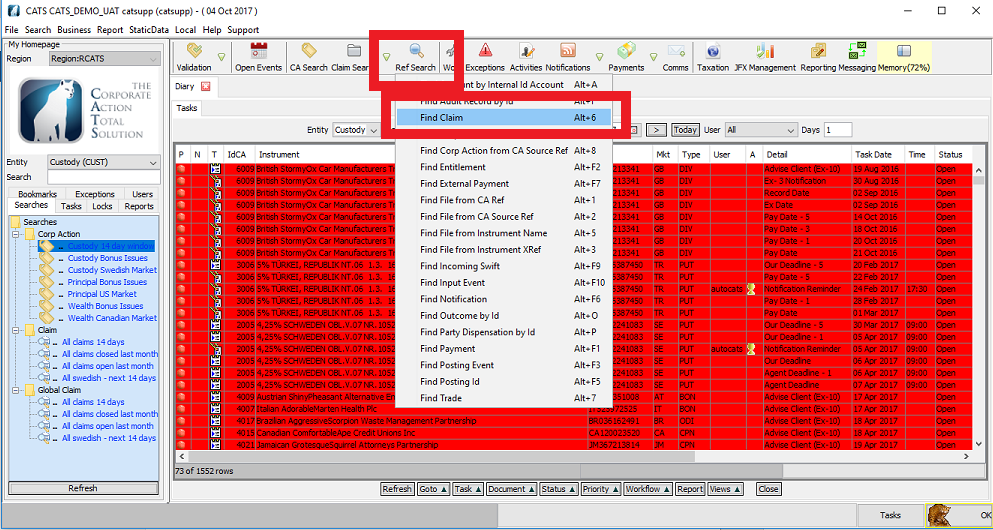
The Input screen will be displayed, as below.

Enter a valid Claim Ref.
Click OK.
The Claim screen will be displayed, as below.

How to Determine the Status of a Claim
The status of a claim is displayed in two ways. Through a text description and the colour of the claim in claim lists.
The available text descriptions for a claim are:
| Status | Meaning |
|---|---|
| Closed | The claim outstanding amount is zero. |
| Grouped | The claim has been grouped with other claims for the same counterparty. |
| Open | The claim outstanding amount is not zero and the associated entitlements for this CATS CA File have been released. |
| Accrual Unreleased | The claim outstanding amount is not zero and the associated entitlements for this CATS CA File have not been released. |
The available colour coding for a claim are:
| Status | Meaning |
|---|---|
| Closed | |
| Grouped | |
| Open | |
| Accrual Unreleased | |
| There is an exception on the claim. |
Company Confidential
