How to Manually Settle a Claim
There are similarities between the processes involved but for clarity the procedure for each type of claim is discussed. We start with discussing the closing of cash claims. The closing of stock claims involves very similar procedures.
Trade Claim
Note: The procedure is the same for adding cash payments and cash receipts. The procedure is illustrated in this document using a cash receipt.
This procedure does not cover specific of payment options as they will be installation and client specific.
Open the CATS CA File screen.
Select the Claims tab.
To settle any claim, the CATS CA File must be locked to that user.
To lock the file, select the Lock button at the top of the CA File Screen, as below.


Click on the claim in the list that you wish to settle.
Click Payment.

There are options.
Select Cash Receipt to record a cash receipt against the claim.
Select Write Off Receipt to record a write off against the claim.
Select Create Claim for Incorrect Comp.
The payment option selection dialog box is displayed, as below.

Enter the amount to be settled in the Amount field. This will be defaulted to the full outstanding amount of the claim. At this point the amount cannot be edited if you are a basic user.
Select the currency to be settled from the list provided. This will be defaulted to the same currency as the claim.
Select the Value date of the settlement in the Value Date field.
Select the payment option from the Options list provided.
Press OK to continue with Claim settlement.
Press Cancel to stop the Claim settlement process and dismiss the dialog box.

Depending on the payment option selected and the user selecting OK, the screen below may be displayed.

Press OK to continue.
Press Cancel to stop the claim settlement process and dismiss the dialog box.
The payment will now require authorizing by a different user.
Agent/Depot Claims
Note: The procedure is the same for adding cash payments and cash receipts. The procedure is illustrated in this document using a cash receipt.
This procedure does not cover specifics of payment options as they will be installation and client specific.
Open the CATS CA File screen.
Select the Depots tab.
To settle any claim, the CATS CA File must be locked to that user.
To lock the file, select the Lock button at the top of the CA File screen, as below.

Select the claim to be settled from the list in the claim section of the depot screen.

Select the Payment button, as displayed above.
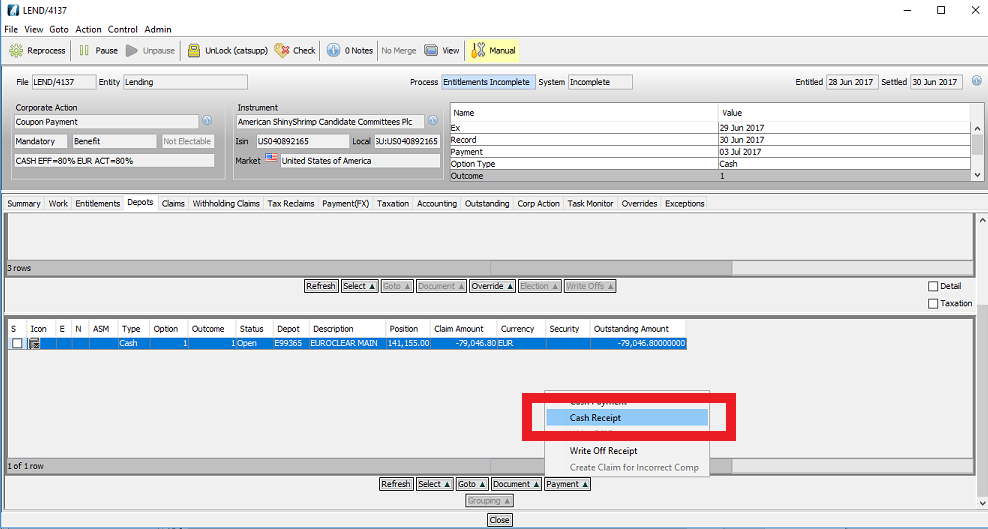
There are options.
Select Cash Receipt to record a cash receipt against the claim.
Select Write off Receipt to record a write off against the claim.
The payment option selection dialog box is displayed, as below.
Enter the amount to be settled in the Amount field. This will be defaulted to the full outstanding amount of the claim. At this point the amount cannot be edited if you are a basic user.
Select the currency to be settled from the list provided. This will be defaulted to the same currency as the claim.
Select the Value Date of the settlement in the Value Date field.
Select the payment option from the Options list provided.
Press OK to continue with Claim settlement.
Press Cancel to stop the claim settlement process and dismiss the dialog box.
Depending on the payment option selected and the user selecting OK, the above screen may be displayed.
Press OK to continue.
Press Cancel to stop the claim settlement process and dismiss the dialog box.
The claim will now require authorizing by a different user.
How to Handle Small Discrepancies Manually (Write Offs)
Write offs can be added to close the claim whilst accounting for the small discrepancies. The procedures involved are similar to the main claim settlement process and are the same for all write offs regardless of the type of claim.
Claim Write Offs
Note: The procedure is the same for adding cash write off payments and cash write off receipts. The procedure is illustrated in this
document using a Depot claim (cash) write off receipt. This procedure does not cover specifics of payment options as they will be
installation and client specific.
Open the CATS CA File screen.
Select the Claims tab.
To write off a claim the CATS CA File must be locked to that user.
To lock the file, selec the Lock button at the top of the CA File screen, as below.

Click on the claim in the list that you wish to write off.
Select the Payment button.

There are options.
Select Write off Receipt to record a write off against the claim.
The payment option selection dialog box is displayed, as below.
Enter the amount to be settled in the Amount field. This will be defaulted to the full outstanding write off amount.
Select the currency to be settled from the list provided. This will be defaulted to the same currency as the claim.
Select the Value Date of the settlement in the Value Date field.
Select the payment option from the Options list provided.
Press OK to continue with Claim settlement.
Press Cancel to stop the claim settlement process and dismiss the dialog box.
Depending on the payment option selected and the user selecting OK, the above screen may be displayed.
Press OK to continue.
Press Cancel to stop the claim settlement process and dismiss the dialog box.
The claim write off will now require authorizing by a different user.
To write off any other type of claim, go to the relevant claim and follow the same process as described above.
How to Authorise a Payment
When a claim or write off is entered into CATS, it can require authorization by a second user. This can be done from within the CATS CA File or the Payment validation screen.
FROM WITHIN THE CATS CA FILE
Select the Work tab.
Select the Payments tab.


To authorize a payment, the CATS CA File must be locked to that user.
To lock the file, select the Lock button at the top of the CA File Screen, as above.
Select the payment to be authorised from the list.
Press the Authorize Payment button.
Press Yes to confirm the payment authorization or
Press No to cancel the process and dismiss the dialog box.

When authorized, the payment status is updated, as below.

FROM WITHIN THE PAYMENT VALIDATION SCREEN
The number of methods for settling claims will differ per installation. A payment validation screen is available for each of these options. These are listed as items from the main Payment screen.

To show all pending payments select the main Payments tab.
The following procedure describes the use of the main payment validation screen. The procedure is the same for the individual screens per payment option.
Select the Payments tab from the main CATS desktop.
The payments screen is displayed. This displayed all pending (not-authorized payments) for the entity.

Select the payment to be authorised from the list.
Select the Authorize Payment button.

Press Yes to confirm the payment authorization.
Press No to cancel the process and dismiss the dialog box.
When authorised the payment is removed from the pending payment list.
How to Reverse a Payment
When a payment has been authorized it may require reversal. This can be done from within the CATS CA File. There may be business specific rules governing the reversal of payments/receipts. The following is the general procedure.
Select the Work tab.
Select the Payments tab.

To reverse a payment, the CATS CA File must be locked to that user.
To lock the file, select the Lock button at the top of the CA File Screen, as above.
Select the payment to be reversed from the list
Press the Reverse Payment button

Press Yes to confirm the payment reversal or
Press No to cancel the process and dismiss the dialog box.

When reversed authorization may again be required (depending upon configuration).

The authorization process has already be described previously.
How to Cancel/Reject a Payment
When a claim or write off is entered into CATS, it can require cancellation prior to authorization. This can be done from within the CATS CA File or the Payment validation screen.
FROM WITHIN THE CATS CA FILE
Select the Work tab.
Select the Payments tab.
To cancel a payment, the CATS CA File must be lockedd to that user.
To lock the file, select the Lock button at the top of the CA File Screen, as below.

Select the payment to be cancelled from the list.
Select the Cancel Payment buutton.
Press Yes to confirm the cancellation process or
Press No to leave the payment as pending.

When cancelled, the payment status is updated, as below.

FROM WIITHINN THE PAYMENT VALIDATION SCREEN
From the main CATS desktop.
Select the Payments tab.
The Payments screen is displayed, as below.
This displayed all pending (non-authorised payments) for the entity.

Select the payment to be rejected from the list.
Press the Reject Payment button, as below.

Press Yes to confirm the payment rejection or
Press No to cancel the process and dismiss the dialog box.

When rejected the payment is removed from the pending payment list.
How to Search for Historic Payments
Select the Payments tab from the main CATS desktop.
Select the required business entity in the Entity list.
Set Search Type to be Advanced Search.
The full filter options are displayed, as below.

To search for payments with a particular status, select the status from the Filter Status list. The default is to search for all status values.
To filter for all payments set Filter Progress to Everything.
To filter for only authorised payments set Filter Progress to Complete.
To filter for only non-authorised payments set Filter Progress to Incomplete.
To filter over a range of value dates enter dates in the Value Date Start and Value Date End fields. By default, only payments for value date of the current business day are included.
Company Confidential
