How to Filter the Data on Any Screen
The data on any CATS list screen can be filtered from the column headers.

To add a filter, right click on the column header you wish to filter on and select the Filter option.


Select the values required.
Select whether to Include selected items or Exclude selected items from the drop-down list.
Press OK to create the filter.
The data in the associated screen is then filtered. Whenever a column is filtered that column header is displayed in blue, as below.

To modify an existing filter right click on the column header you wish to filter on and select the Filter option.
How to Remove and Add Columns to the Data
Columns can be added and removed from the CATS list screens.
To add a column right click on the column header.
Select the Add Column option.

This will display the Choose the Column to add dialog box, as below.
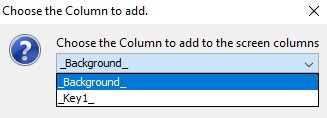
Select the column to be added from the drop-down list and then click OK.
The column will be added to the list screen.
To remove a column right click on the column header for the column you want to remove.
Select the Hide Column option.

This will hide that column from view.
How to Sort the Data on Any Screen
The data on any CATS list screen can be sorted from the column headers.
Left click on the column header to sort the column in ascending order.

Left click on the column header twice to sort the column in descending order.

If the column is sorted, the sort can be removed by left clicking until the arrow and shading is removed from the column header.
How to Save Screen Layouts that have been Changed
If the screen layout has been changed then it can be saved so that it can be re-used. Within CATS these are referred to as View Styles.

Right click on the column header and select the Save Custom View Style option to save the particular view for later use.
A custom view style can only be used by the user creating the custom view style.
Click Delete Custom View Style option if you require to remove a previously saved view style.
Click Set Custom Default View option if you want to set a custom view style to always be used.
Click Save Standard View Style option to save the particular view for later use.
A standard view style can be used to change a particular view for all users.
Click Delete Custom View Style option if you require to remove a previously saved view style.
Click Set Custom Default View option if you want to set a standard view style to always be used.
How to Extract Screen Information From CATS
The data on any CATS list screen can be extracted. This function relies on Microsoft Office being present upon the computer in question.
On any list screen in CATS right click on any row and select the required options, as below.

To open Excel and copy the data from the screen and formatting select the Direct (with Formatting) option. The spreadsheet will open.
To open Excel and copy the data from the screen and without formatting select the Direct option. The spreadsheet will open.
To copy the data from the screen and formatting and save it to an Excel file, select the File (with Formatting) option.
You will be asked to enter the name of the file to be created.

To copy the data from the screen and without formatting and save it to an Excel file.
Select the File option.
Select the Save as Excel File option.
How to View and Access the Standard CATS Reports
The CATS standard reports are available from the Report menu item on the main CATS desktop.
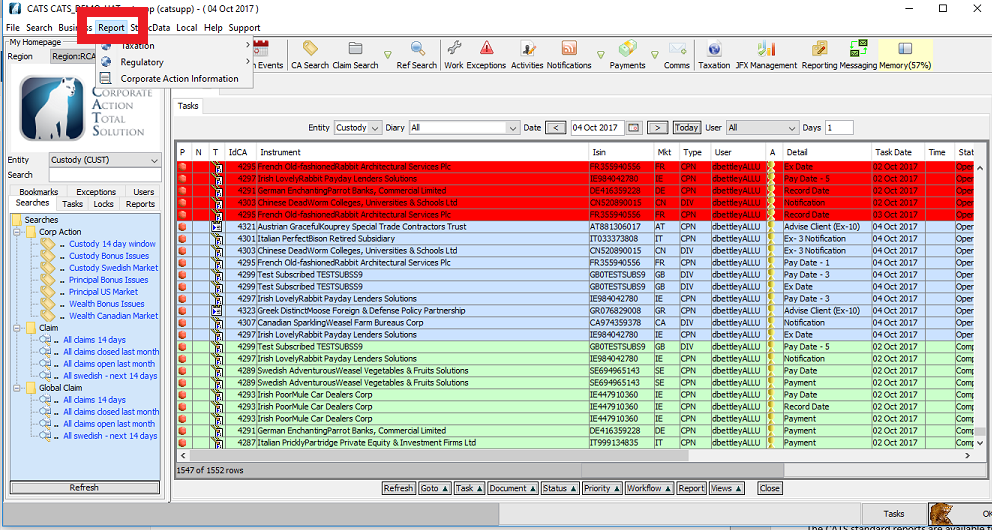
Select from the drop-down box.
How to View and Access the Taxation Report and Data
The Taxation Report – Provides a report showing US Tax documentation that has been received and recorded against the clients and counterparties.
Select Report menu.
Select Taxation.
Select United States.
Select Party Dispensation Static.

The Party Dispensation Static screen is displayed, as below.

Select Entity Type.
Select Expiry Level.
Select Dispensation Type.
Select All Static ?
Select Expiry Status.
Select Exception Type.
Select Rows.
Select Party Name.
Select Expiry Date.
Enter the required start date in the Start and the required end date in the End fields.
Select Y or N in the Relative Dates field.
Select View Report or View Data from the View option.
Select Print to print.
Select Refresh to refresh.
Select Save to save.
Select Email to export.
Select Close to close the report.
How to View and Access the Withholding Tax Claims Report and Data
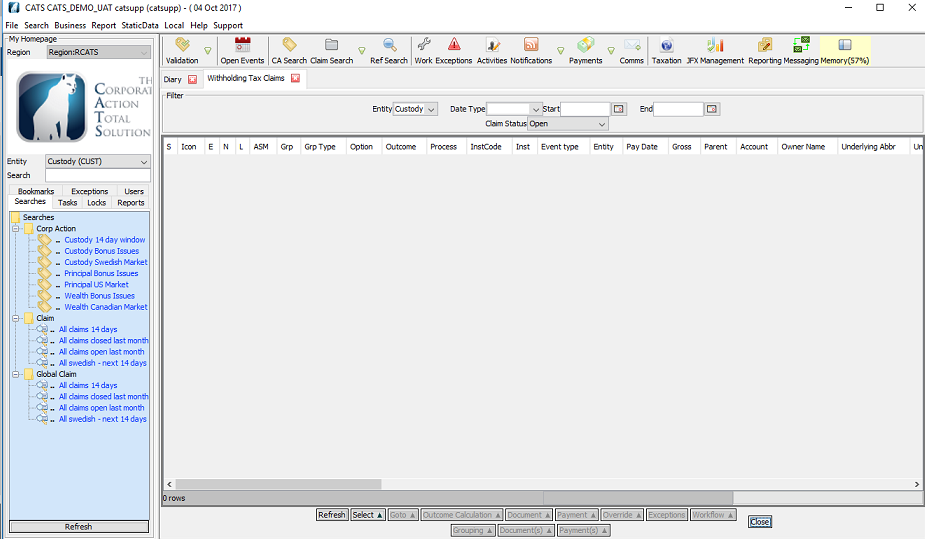
Withholding Tax Claims – Provides a report showing US Withholding Tax claims.
Select Report menu.
Select Taxation.
Select United States.
Select Withholding Tax Claims.

The Withholding Tax Claims screen is displayed, as below.
How to View and Access the Standard CATS Taxation Reports
If the user is a taxation user, the CATS Taxation reports are available from the Taxation option on the main CATS desktop, as below.


How to View and Access the Standard CATS Management Reporting Functions
The CATS standard reports are available from the JFX Management option on the main CATS desktop, as below.


Company Confidential
