This provides a list of procedures for the diary and task processing associated with corporate actions within the CATS application.
Note: The terms diary item and diary task are used interchangeably.
Diary information is avaliable from two places. The main diary view and the file dairy view.
How to Determine the Status of a Particular Task
The status of a diary task is displayed in two ways. Through a text description and the colour of the diary items in the diary views.
The colour coding for a diary task are:
| Status | Colour and Meaning |
|---|---|
| Completed | The diary task is Completed |
| Changed | The processing diary task has been modified by a user and needs additional review |
| Open and Not Late | Not completed and not late |
| Open and Late | Open and late |
| Cancel | The diary task has been cancelled |
How to Allocate Diary Tasks
Diary items can be allocated from the main diary view or the file diary view.
NOTE: Some diary tasks can only be performed by a Supervisor.
HOW TO ALLOCATE TASKS FROM THE MAIN DIARY VIEW
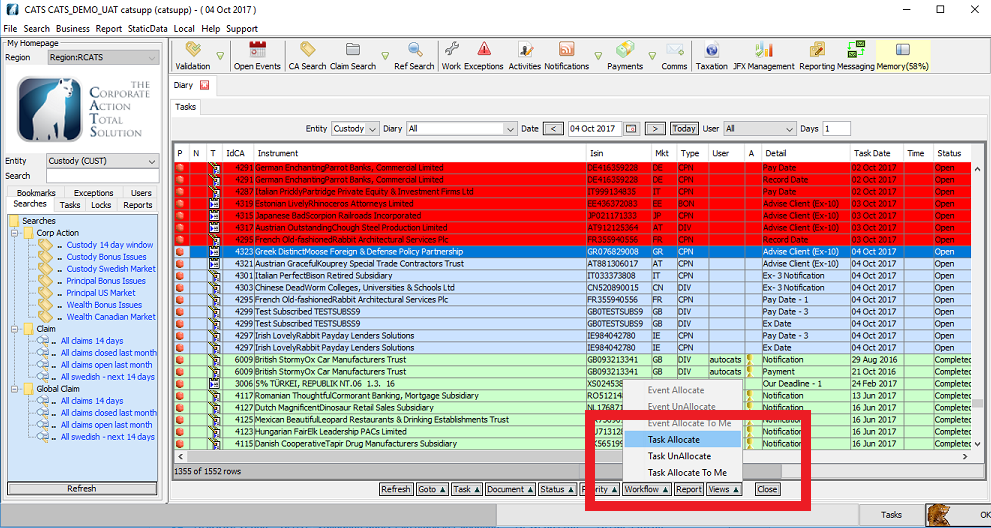
To assign a single task to a user, select the diary item in question.
Click the Workflow button.
Select Task Allocate.
The Choose User screen will be displayed, as below.
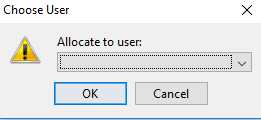
Select the user you wish to allocate the task to.
Click OK.
Mutiple Allocations can also be Performed at once
FROM THE MAIN DIARY VIEW
NOTE: Some diary tasks can be performed by a Supervisor.
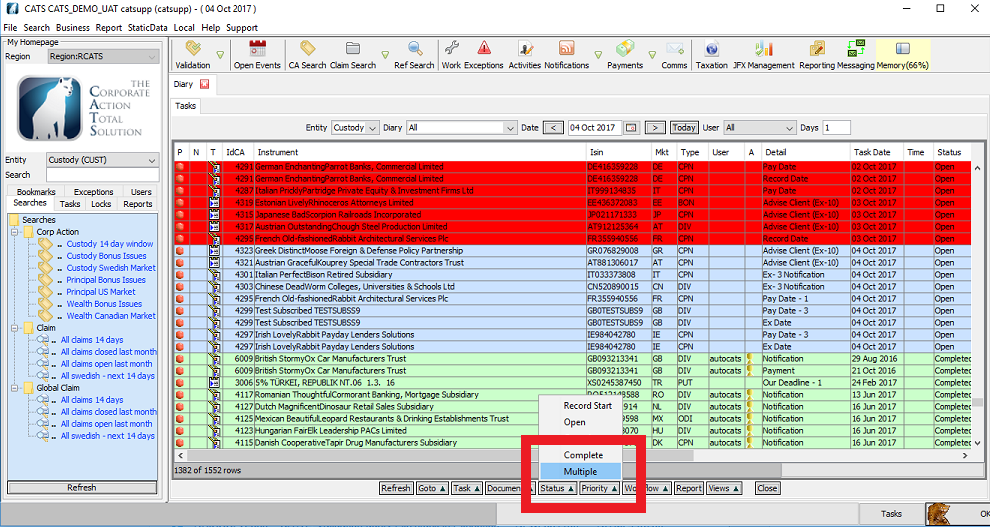
Click Status button.
Select the Mutiple option.
The Multiple Diary Changes screen will be displayed, as below.
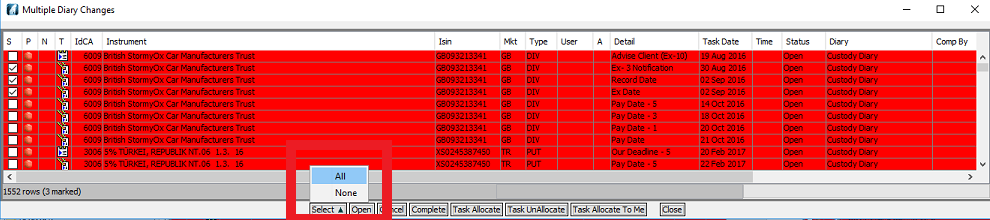
To allocate multiple changes hold down the Ctrl button on your keyboard and click on the ones you wish to allocate.
Click Select.
Select All.
Select Task Allocate.
The Confirm Allocation Change screen will be displayed, as below.
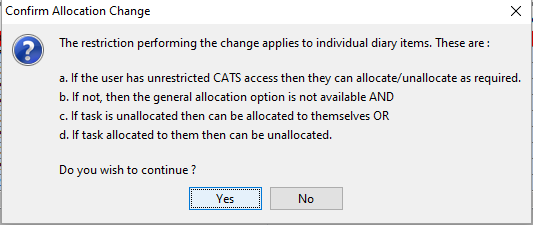
To confirm the Allocation Changes and carry on.
Click Yes.
The Choose User screen will be displayed, as below.
Select the user you wish to allocate the task to.
Click OK.
FROM THE CATS CA FILE SCREEN
Select the Work tab.
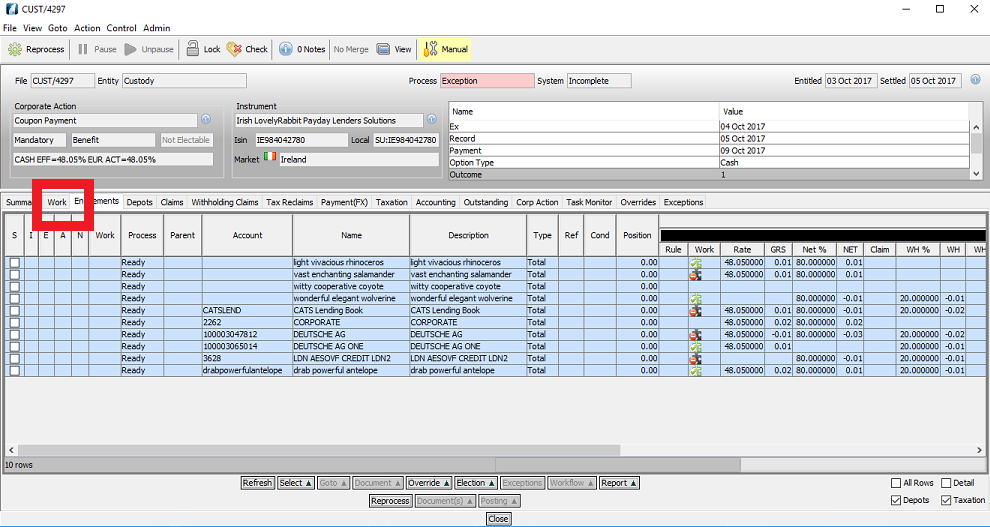
The screen will be displayed, as below.
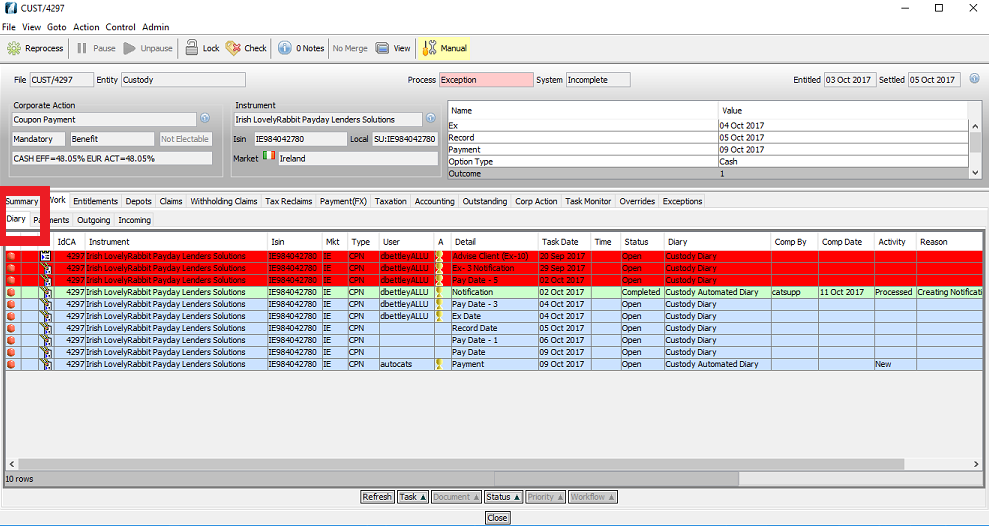
Select the Diary tab.
Click Status button.
Select the Mutiple option.
The Multiple Diary Changes screen will be displayed, as below.
To allocate multiple changes hold down the Ctrl button on your keyboard and click on the ones you wish to allocate.
Click Select.
Select All.
Select Task Allocate.
The Confirm Allocation Change screen will be displayed, as below.
To confirm the Allocation Changes and carry on.
Click Yes.
The Choose User screen will be displayed, as below.
Select the user you wish to allocate the task to.
Click OK.
How to Allocate a Task to Yourself
FROM THE CATS CA SCREEN
Select the Work tab.
The screen below will be displayed, as below.
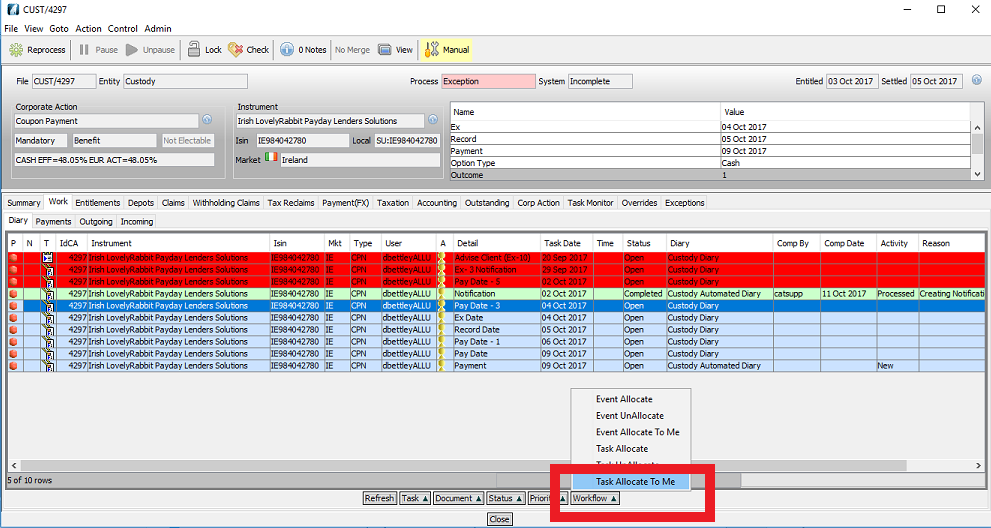
Select the item and highlight the row.
Select Workflow.
Select Task Allocate to Me.
How to Unallocate Diary Tasks
As with diary task allocation , items can be unallocated from the main diary view, file diary view or from the workflow tool on the Tasks tab of the CATS My Homepage.
HOW TO UNALLOCATE A SINGLE TASK FROM A USER
From within the CATS CA File screen.
Select the Work tab.
The screen will be displayed, as below.
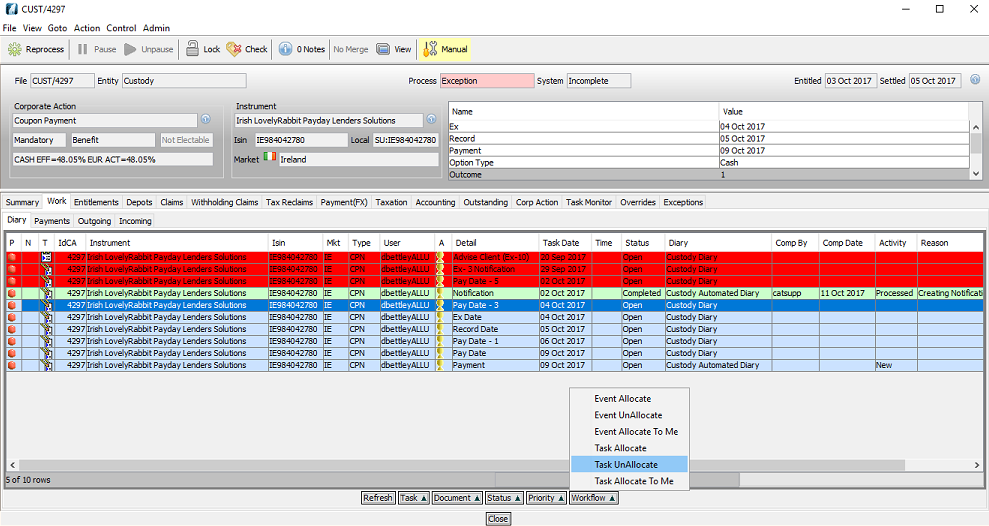
Select the item and highlight the row.
Select Workflow.
Select Task UnAllocate.
HOW TO UNALLOCATE MULTIPLE TASKS
Un-allocating tasks from the main diary view.
NOTE: Some diary tasks can only be performed by a Supervisor.
Click Status button.
Select the Mutiple option.
The Multiple Diary Changes screen will be displayed, as below.
To allocate multiple changes hold down the Ctrl button on your keyboard and click on the ones you wish to allocate.
Click Select.
Select All.
Select Task UnAllocate.
The Confirm Allocation Change screen will be displayed, as below.
To confirm the Allocation Changes and carry on.
Click Yes.
How to Add a New Task for the Processing of a Corporate Action
Adding a new task is performed from the Entity Corp Action Type Config screen. From the main CATS desktop screen.
Click the Static Data menu.
Select Internal.
Select the Entity Corp Action Type Config option.
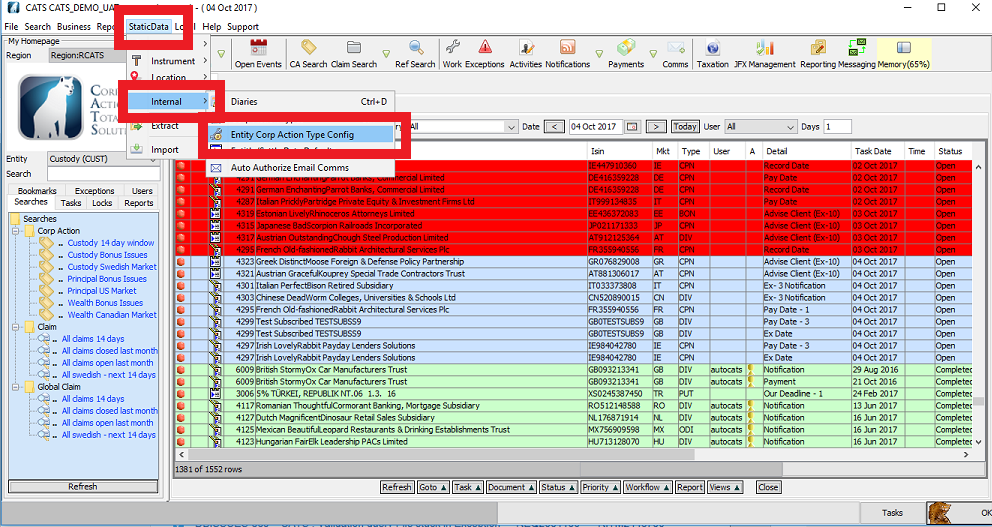
This displays the Entity Corp Action Type Config screen, as displayed below.
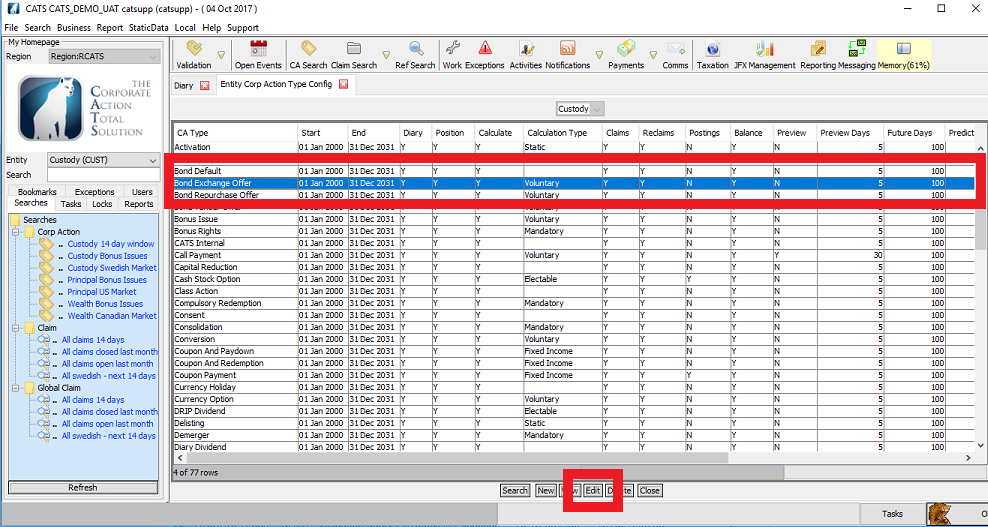
The Entity CA Type Processing screen is displayed, as below.
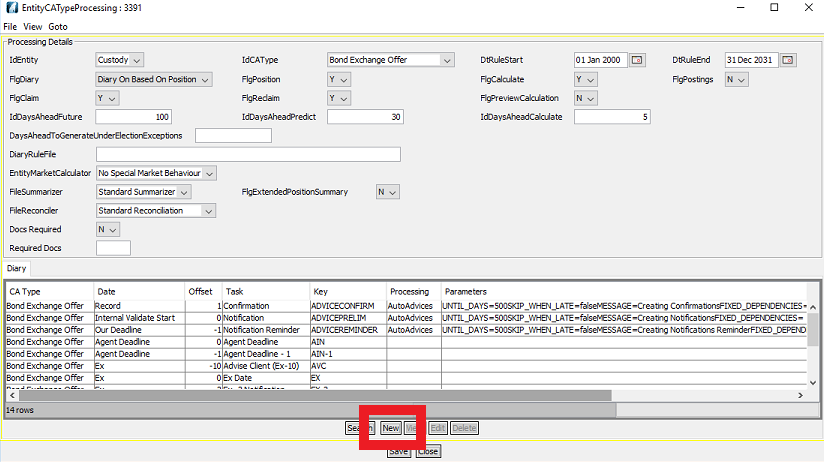
To add a new diary task.
Click New.
The Entity CA Type Diary Map Item New Screen is displayed, as below.
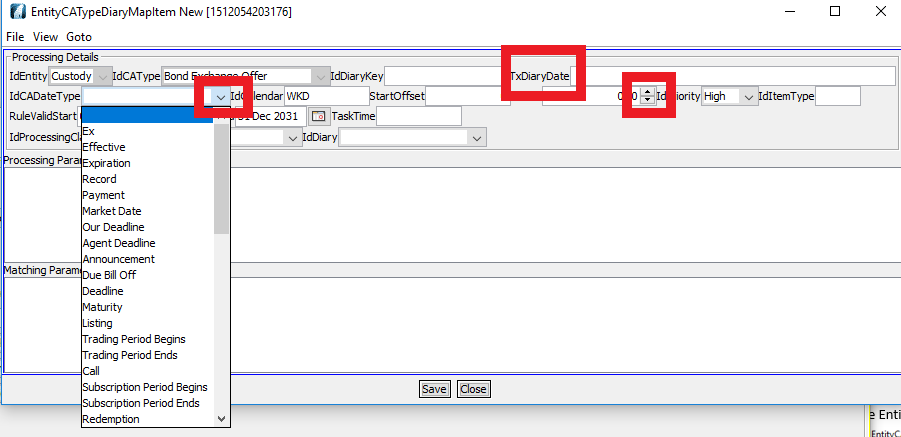
Add the label to be displayed on the CATS screens for this task in the Tx Diary Date field.
Use the spin control next to the Offset field to determine the number of days from the Id CA Date Type field to create the diary task.
Select the corporate action date type from the IdCADateType drop down list.
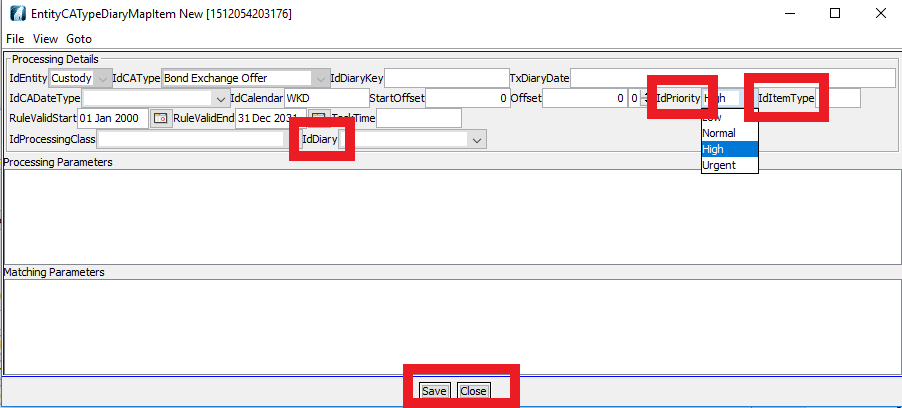
Set the task priority from the Id Priority field.
Set the task type from the Id Item Type field. P for a processing task and T for a linked diary task.
Select the relevant diary from IdDiary.
Click Save to create the new diary task.
Click Close to dismiss the Entity CA Type Diary Map Item NewEntity CA Type Diary Map Item New screen.
The new diary task would be created in a CATS CA file the next time that file is reprocessed.
How to Add an "AD-HOC" Diary Task
"Ad-hoc" diary items can be added from the file diary view.
Select the Work tab.
The screen will be displayed, as below.
Select the Diary Tab.
The screen will be displayed, as below.
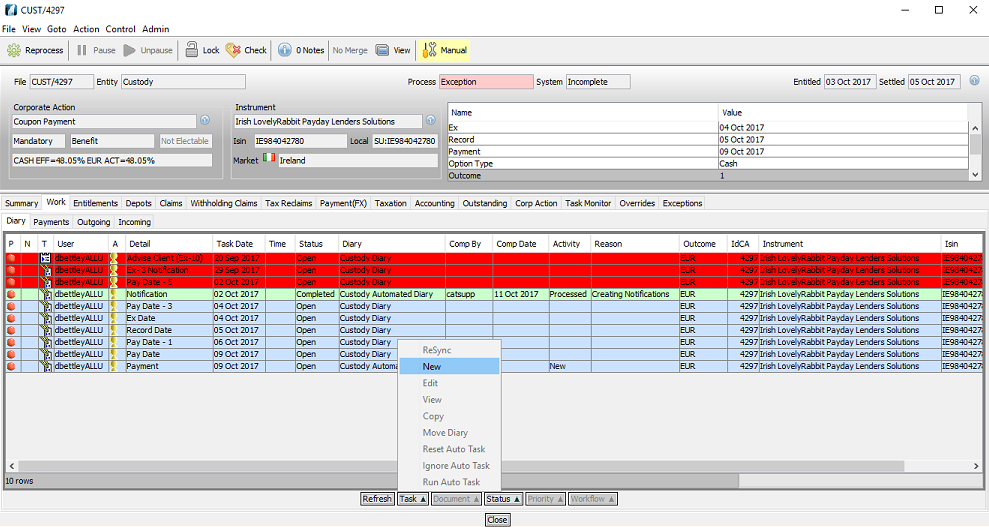
Select Task.
Select New.
The Select A User Diary screen will be displayed, as below.
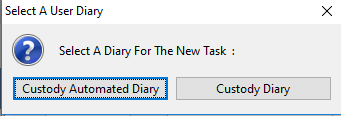
For Example, select the Custody Automated Diary option.
The Diary Item New screen is displayed, as below.
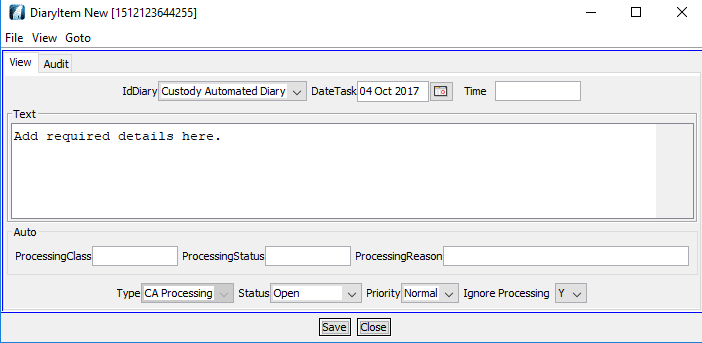
Allocate the task to the relevant diary by selecting from Id Diary.
Enter the date of the task in the Date Task field.
Enter the time required in the Time field (e.g. HH:MM).
Enter the details of the task in the Text box.
Click Save to save the task and dismiss the dialog box.
How to Complete a Diary Task
If the diary task is assigned to a particular user, that user would complete a diary task.
From the file diary view.
Select the Work tab.
The screen will be displayed, as below.
Select the Diary Tab.
The screen will be displayed, as below.
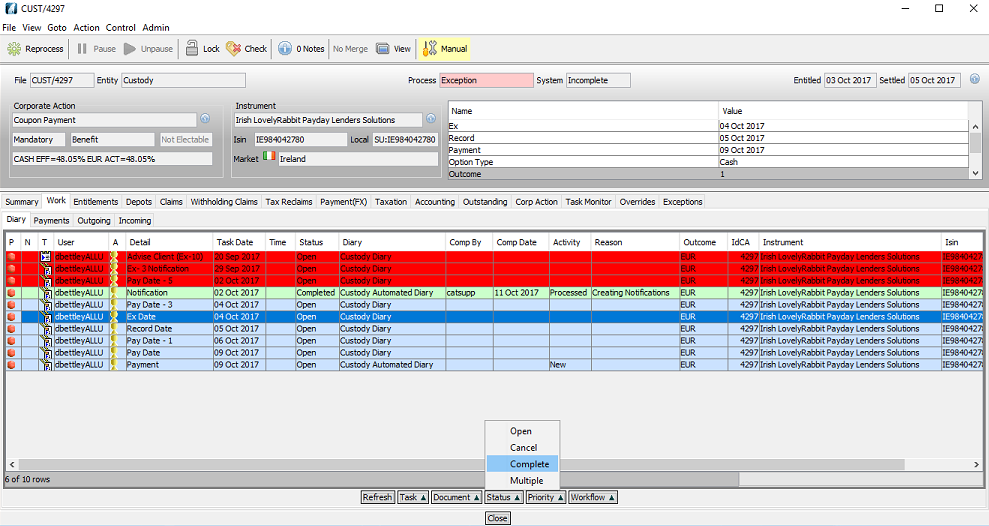
Click on the diary item in question to highlight it in the list.
Select Status.
Select Complete.
MULTIPLE DIARY TASK CAN BE COMPLETED IN ONE ACTION
Click Status button.
Select the Mutiple option.
The Multiple Diary Changes screen will be displayed, as below.
Select the diary items you wish to complete by ticking the box in the S column.
Click Complete.
Click Close.
How to Cancel a Diary Task
If the diary task is assigned to a particular user, that user would cancel a diary task.
From the main diary.
Note: Some diary tasks can only be performed by a Supervisor.
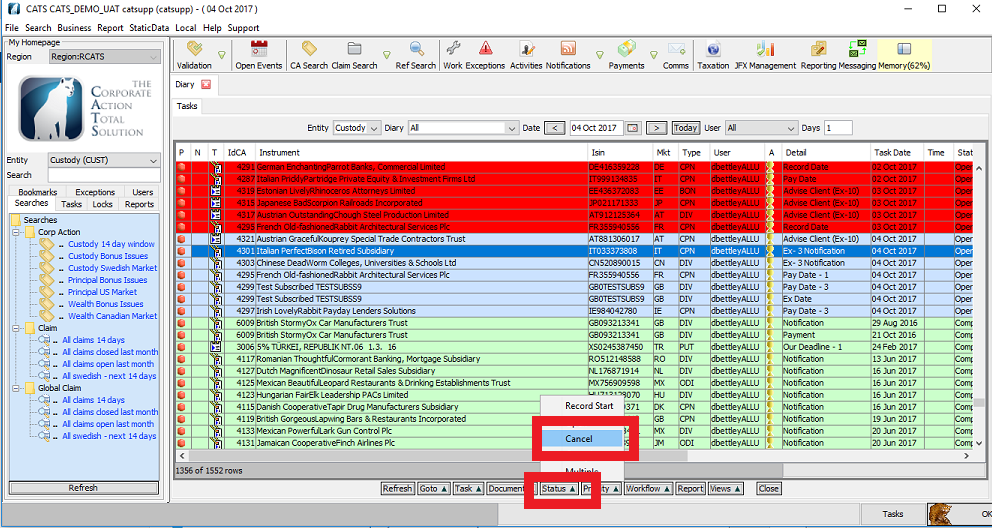
Click on the diary item in question to highlight it in the list.
Select Status.
Select Cancel.
From within the CATS CA File screen.
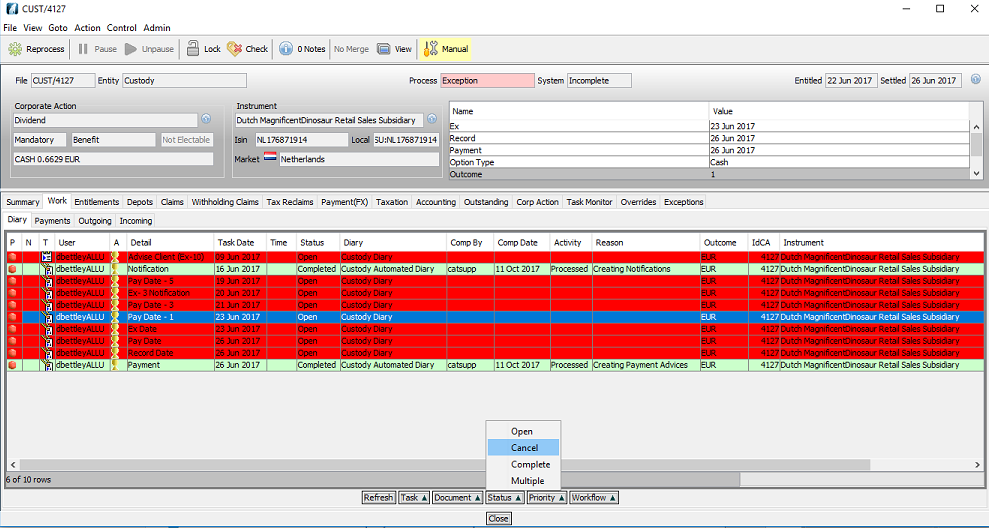
Select the item in question and highlight the row.
Select Status.
Select Cancel.
MULTIPLE DIARY TASKS CAN BE CANCELLED IN ONE ACTION
From the Main Diary Screen.
NOTE: Some diary tasks can only be performed by a Supervisor.
Click on the diary item in question to highlight it in the list.
Click Status button.
Select the Mutiple option.
The Multiple Diary Changes screen will be displayed, as below.
Hold the Ctrl key and select the ones you wish to cancel.
Click Select.
Select All.
Select the Cancel button to cancel the diary items.
The Confirm Status Change screen will be displayed, as below.
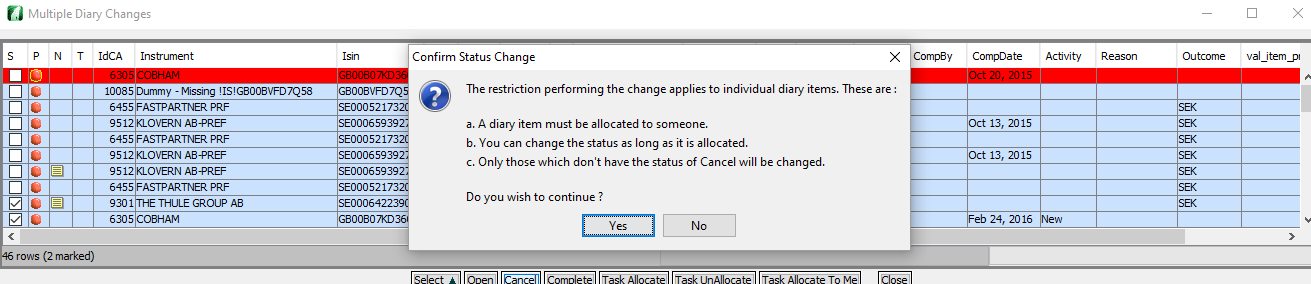
Click Yes to confirm.
Select No to dismiss the Confirm Status Change screen.
In certain cases, diary items can also be cancelled automatically by the system.
When a CATS CA File is cancelled any incomplete diary items will be cancelled automatically.
Company Confidential
