How to Manually Create Claim Document
FROM THE CATS CA FILE SCREEN
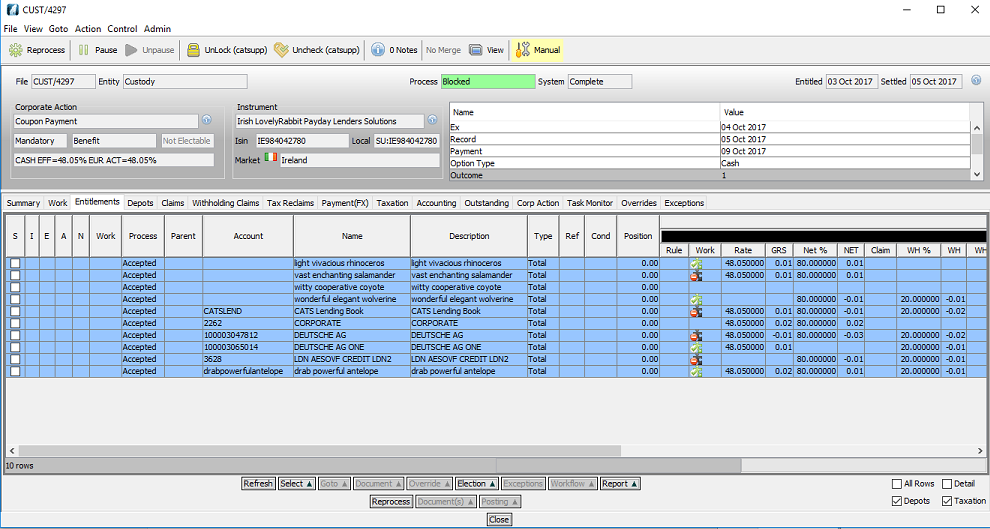

Click Claims.
The screen will be displayed, as below.

Click to highlight the required row.
Click Document.
Select Preview.
A preview of the claim document is displayed, as below.

There are a number of options:
Click Print.
The Print screen is displayed, as below.

Click OK to print a hard copy.

Click Refresh.
Select Save To File.
Select Email to send an email.
Select Alter.
The Select Report File Name screen is displayed, as below.

Enter the required file name.
Make sure file of type is PDF only.
Select Save.
The Email screen will be displayed, as below.

Enter the relevant details.
Click Send.
Please Note: Pressing the Alter option only gives you the following screen.
The Report Parameter Changes screen is displayed, as below.
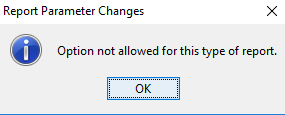
Please note: Documents can vary depending on event types.
How to Create an Entitlement Advice
FROM WITHIN THE CATS CA FILE
Click Entitlements.

Select the line to generate the advice for.
Click Document.
Select Preview.
The Advice screen will be displayed, as below.

Select CA Event Notification.

Select Prelim Notification.
Select Document.
Select OK.
The Confirmation screen will be displayed, as below.
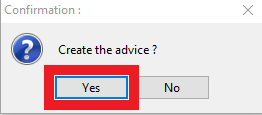
Select Yes.
The Report Options screen will be displayed, as below.

Select the relevant Narrative.
Select OK.
There are various option:
Click Refresh.
Select Save To File.
Select Email to send an email.
Select Alter.
When Alter is pressed:
Select Change Values.
The Editable Options screen will be displayed, as below.
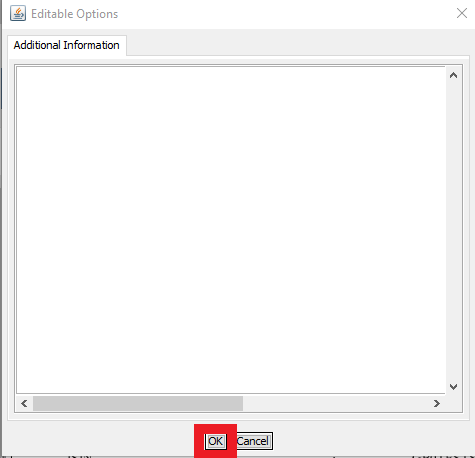
The user can then enter any additional relevant information in this box.
Click OK.
The advice is then ready to be printed/sent as previously mentioned.
How to Manually Group Claims
Manual Grouping of Claims can be Performed from Any List of Claims
From Claim: New Claim Search list as shown below.
Before a user starts to group any claims, the following should be remembered:
All the claims have to belong to the same Counterparty.
All the claims have to belong to the same CA event.
All the claims have to be from the same outcome.

User selects the claims for grouping from the list.
Select Grouping.
Select Group.


Click Yes.
User can see the screen indicates a Grp number and a Grp Type of Manual.

Select Goto.
Select CA File.
To view the grouped claims the user should then navigate to the Claims tab. The grouped claim is shown below.

Grouping can also be processed within the Claims tab by applying the same steps and controls.
Company Confidential
