How to View Notifications
To view all CATS notifications (which will also include, by default, SWIFT messages) go to the Notification Queue.
Go to the CATS main screen.
Select the Business menu.
Select the Notification option.
Select the Notification Queue.

The Notification Queue screen will be displayed, as below.

Apply the relevant filters to ensure accurate results are returned.
Select Entity.
Select Source.
Select the required Creation Start Date.
Select the required Creation End Date.
Select Status.
Select Notification Type.
Select the Direction Type.
Select the Source Ref if required.
Click Refresh.
The Notification Queue screen is displayed, as below.

The user can then choose from the various tabs at the bottom of the screen.
Click on a row.
Click Goto.
Select Source.
The CommControl screen will be displayed, as below.
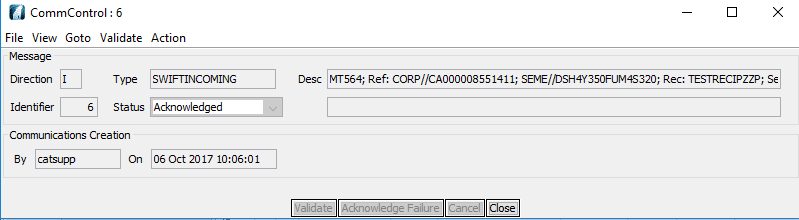

Choose Action to select Add Association or Repair and Retry or Choose Association.
Click Refresh to run the search.
Choose Select to choose All, None, Append Selected or to Remove Selected.
Click Close to close.
How to View Incoming Swifts
To view incoming SWIFTs, go to the SWIFT Queue.
Go to the CATS main screen.
Select the Business menu.
Select the Notification option.
Select the SWIFT Queue option.

The SWIFT Queue screen will be displayed, as below.

Apply the relevant filters to ensure accurate results are returned.
Select Entity.
Select Source.
Select the required Creation Start Date.
Select the required Creation End Date.
Select Status.
Select SWIFT Type.
Select the Text.
Select Refresh to run the search.
The Swift Queue screen will be displayed, as below.

Click Goto and select required option from the list.
Click on the row required.
Select Action.
Select the option required from the list.
Click Close to return to the Main CATS diary page.
How to Access the Compensation Screen
Go to the CATS main screen.
Select the Business menu.
Select the Receipt option.
Select the Cash option.

The Incorrect Compensation Entry screen is displayed, as below.
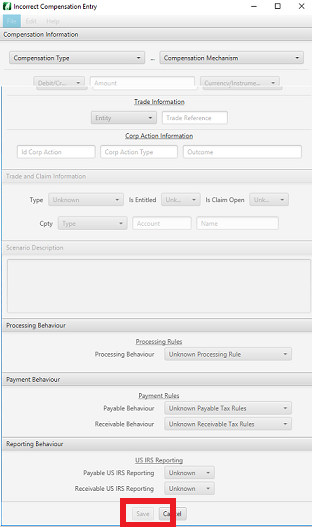
Select the relevant fields using the drop-down boxes and complete any necessary values.
Once all the fields are completed,
How to Build an Excel CA Load Template
Go to the CATS main screen.
Select the Business menu.
Select the Corp Action option.
Select the Build Excel CA Load Template option.

The Choose instrument load type screen will be displayed, as below.
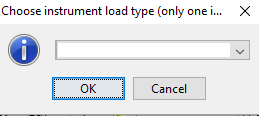
Choose the required option from the drop-down list.
Click OK.
The Choose location for Excel template screen is displayed, as below.

You can then name and save the template.
How to View and Access the Business Position New
Go to the CATS main screen.
Select the Business menu.
Select the Position option.
Select the New option.

The Create new position screen is displayed, as below.

Select the relevant fields using the drop-down boxes and complete any necessary values.
Once all the fields are completed,
How to View and Access the Business Position Search
Go to the CATS main screen.
Select the Business menu.
Select the Position option.
Select the Position Search option.

The Position Search screen is displayed, as below.

Choose and select the relevant fields using the drop-down boxes and complete any necessary values.
Once all the fields are completed,
How to View and Access the Business Position Statement
Go to the CATS main screen.
Select the Business menu.
Select the Position option.
Select the Position Statement option.

The Position Statement screen is displayed, as below.

Choose and select the relevant fields using the drop-down boxes and complete any necessary values.
Once all the fields are completed,
