How to Block a File
FROM THE MAIN CATS SCREEN
Select the required file.
Select Action menu.
Select Block Request.
NB: The same user cannot make the Block Request and then the Validation. The Validation has to be done by a different user.
To Block a file the process status MUST always be OK, as below.

The sceen will be displayed with the process status of Block Request, as below.

NB: The file then requires validation by a different user.
Select the Validation menu.
Select the Validate Files.

The screen will be displayed, as below.
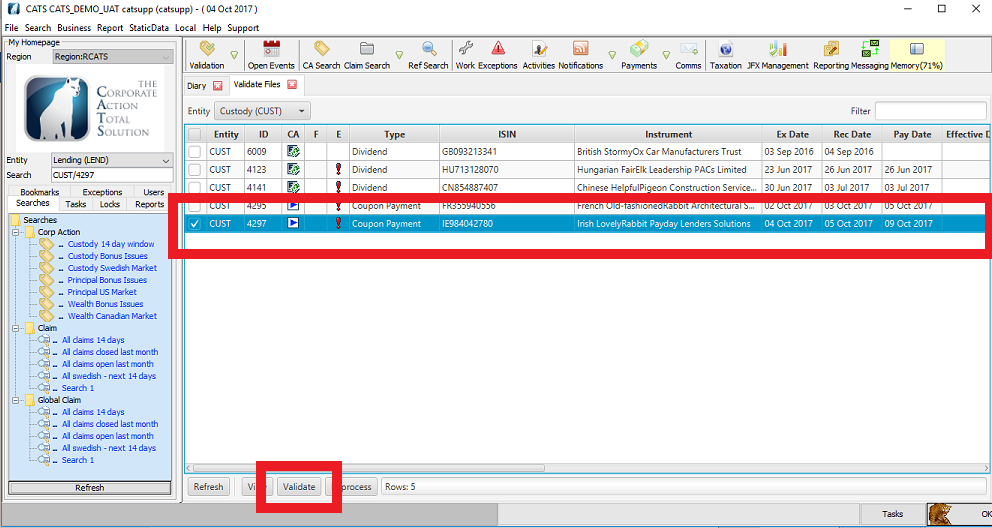
Select the file you wish to validate from the list.
Select the Validate.
The screen will be displayed, as below.

Select Validate.
The screen will be displayed with a process status of Blocked, as below.
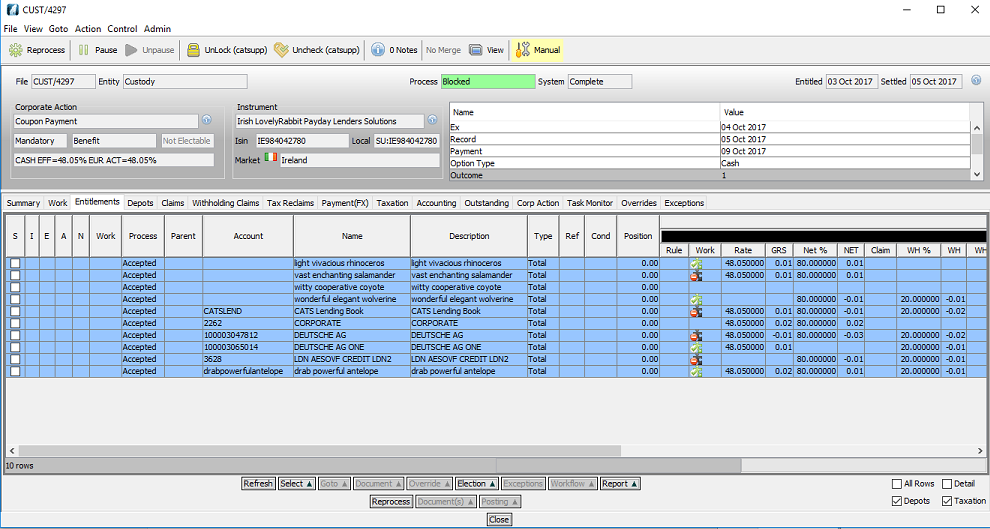
The file is the Blocked.
How to Unblock a File
FROM THE MAIN CATS SCREEN
Select the required file.
Select Action menu.
Select Unblock Request.
NB: The same user cannot make the Unblock Request and then the Validation. The Validation has to be done by a different user.
To Unblock a file the process status MUST always be Blocked, as below.

The screen will be displayed with the process status of Unblock Request, as below.

Select Validation menu.
Select Validate Files.
The screen will be displayed, as below.
Select the file you wish to validate from the list.
Select the Validate.
The screen will be displayed, as below.
Select Validate.
The screen will be displayed with a process status of OK, as below.

Company Confidential
