Where to Find Stock Record Information
Stock record information is located within the CATS CA File screens.
How to Find a Summary of the Stock Record Information
First, find the appropiate CATS CA file by either:
Select Open Event.

Enter the relevant CA reference number in the Search box as below.

Or, from the main Diary screen open the required CATS CA File by double clicking on any item in the list provided.

When the CATS CA File screen opens.
Go to the Summary tab.

Depending upon the event type, the summary screen can differ. By default, for non-electable events the summary screen will contain two tables. As illustrated below.

The left-hand table showing a stock record summary.
The right-hand side showing an outstanding summary of payable/receivable event outcomes.
For electable events an additional table is displayed in the summary screen. This provides a summary of the current elections required/made in the system. Reconciliation issues being highlighted in red.

How to Find the Detailed Stock Record Information
Open the requried CATS CA File Screen.
Click the Entitlements tab.
The screen will be displayed, as below.

For the stock record of Agent positions select the Depots tab.

The screen will be displayed, as below.

How to Get a Report of the Entitled Stock Record
Open the required CATS CA File screen.
Go to the Entitlements tab.

Select the Report button.
Select the Overview option.
The overview report is previewed in its own window, as below.

To print this overview report.
Select the Print button.
You can export this report via several methods.

To save this report in PDF format select the Export button.
Select the As PDF option.
The Select Report File Name screen will be displayed, as below.

Enter the file name required.
Select PDF only in the File of type drop-down list.
Select the Save button.
The Save Completed screen will be displayed, as below.

When the file is created, you can open the file automatically.
Select Yes in the Save Completed dialog box.
Select No to dismiss this option.
To save this report as an encrypted PDF select the Export button and As Encrypted PDF option.
To save this report in comma separated format select the Export button and As CSV option.
To save this report in Microsoft Excel format select the Export button and As XLS option.
To save this report in HTML format select the Export button and As HTML option.
To send the report using the standard email system select the Send button and As Standard Email option.
To send the report using the CATS email system select the Send button and Via Cats Email option.
How to Change the Configuration Options for Stock Record Generation
It is possible to change the time, within a corporate actions lifecycle, that the stock record is generated.
This configuration is per event type and per business entity.
From the main CATS desktop.
Select the Static Data menu.
Select the Internal menu.
Select the Entity Corp Action Type Config option.

The Entity Corp Action Type Config screen is displayed in the Main CATS desktop

Select the required event type from the list.
Select the Edit button.
The Entity CA Type Processing screen is displayed, as below.
To calculate the stock record, the FlgPosition flag must Y.

The IdDaysAheadPredict value details how many business days prior to the entitled date of the event that the stock record will be generated.
Click the Save button to store any changes or
Click the Close button to dismiss this dialog box.
Any changes take effect the next time any appropriate CATS CA File is reprocessed.
How to Manually Adjust Positions within the Stock Record Book/ Client Setted Positions
Open the required CATS CA File screen.
Go to Entitlements tab.
Ensure the file is locked to you. If not locked press the Lock button at the top of the CA File screen, as below.

Select DPO or DPT row from the Type column that requires adjustment.
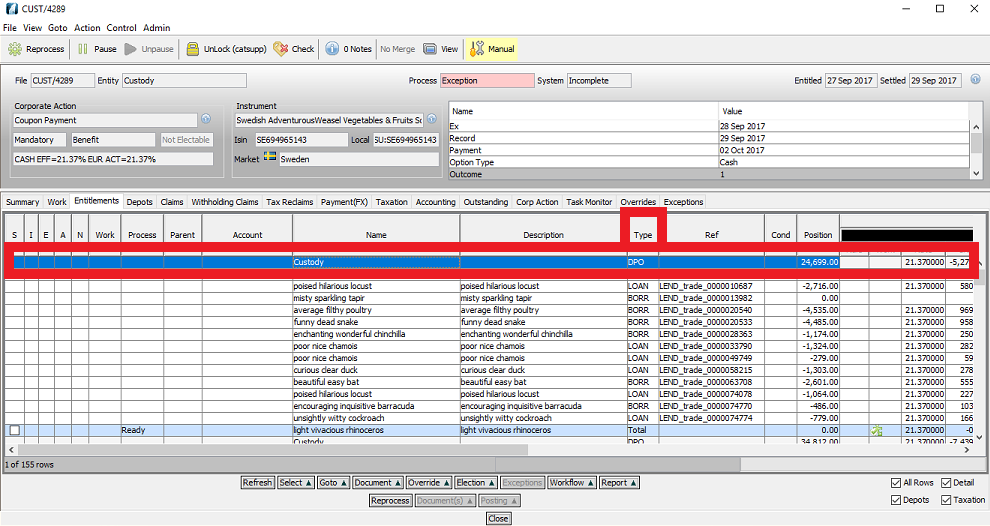

Select Override option.
Select Apply Override.

The What do you wnat to Override? screen is displayed, as below.

Select the Stock Record Information option using the drop-down box.
Click OK.
The Choose an Override screen is displayed, as below.

Select the Adjust Position Value option using the drop-down box.
Click OK.
The Enter Values screen will be displayed, as below.
Enter details in Position Offset box and any associated notes in the Reason for Override section.

Select Finish to apply the override.
Select Cancel to dismiss the dialog without applying the override.
Agent Settled Positions
Open the required CATS CA File screen.
Go to the Depots tab.
Ensure the file is locked to you. If not locked press the Lock button at the top of the CA File screen, as below..

Select the Agent position line that requires adjustment.
Select the Position column.
Select the Override button and the Apply Override option.

The What do you want to Override? screen is displayed, as below.

Select the Stock Record Information option using the dropdown box.
Click OK.
The Choose an Override screen is displayed, as below.

Select the Stock Record Information option using the dropdown box.
Click OK.
The Enter Values screen will be displayed, as below.
Enter details in Position Offset box and any associated notes in the Reason for Override section.
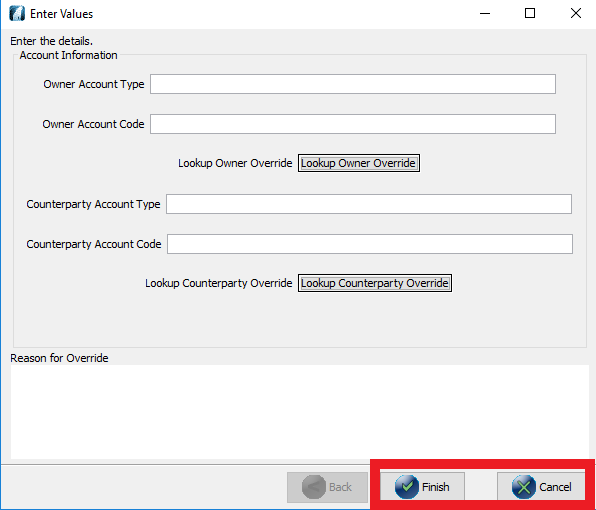
Select Finish to applly the override.
Select Cancel to dismiss the dialog without applying the override.
How to View Individual Trades within the Stock Record
Select Finish to applly the override.
Select Cancel to dismiss the dialog without applying the override.

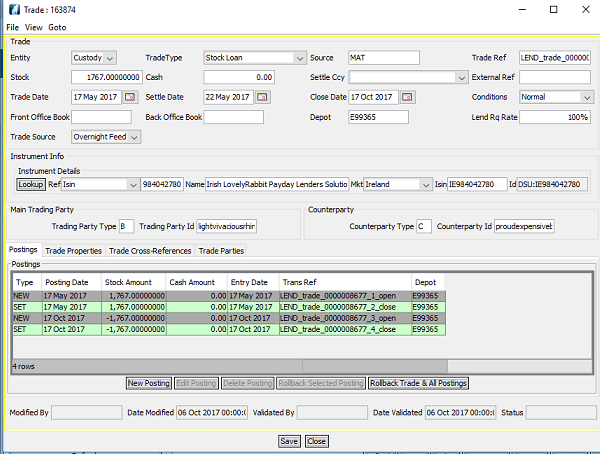
The Trade view screen will be displayed, as below.

It is also possible to find an individual trade using CATS enquiry functions.
Select Ref Search.
Select Find Trade.

The Input screen will be displayed, as below.
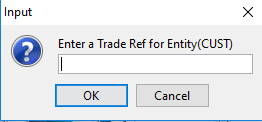
Enter a valid Trade Ref for Entity(CUST).
Click OK.
The Trade screen will be displayed, as below.
Company Confidential
