How to Release Accrual Messages for Book or Client Position P & L
This is known as entitlement release and is performed from within the CATS CA File.
Go to the Entitlements tab.
Ensure the CA File is both locked and checked.
To lock the file, press the Lock button at the top of the main CATS CA File screen.
A separate user must have checked the file prior to the lock being applied. To check the file, press the Check button at the
top of the main CATS CA File screen.
Important Note: The CATS CA File must be checked and locked by different users.

Select the entitlement summary lines to be released. Exceptions should be resolved before releasing the entitlement.
The lines which can be released have a Process of Ready.
Select by checking the item in the S column.
To release the entitlements.
Select the Posting button.
Select the Release/Release Changes option, as displayed below.

If you do not select all of the entitlements, the Warning box will appear, as below.

Select Yes to release the changes.
Select No to cancel the changes.
The entitlement release process takes a small period of time to complete. When completed the released entitlements have the process value of Accepted, as below.

How to Correct Already Released P & L Accrual Messages
If due to a change in processing values released accrual messages would change then it may be necessary to reverse any previous sent messages and release a new set of messages.
Go to the Entitlements tab.
Ensure the CA File is both locked and checked.
To lock the file, press the Lock button at the top of the main CATS CA File screen.
A separate user must have checked the file prior to the lock being applied. To check the file, press the Check button at the
top of the main CATS CA File screen.
Important Note: The CATS CA File must be checked and locked by different users.

Select the entitlement summary lines to be un-released. The lines which can be un-released have a Process of Accepted or Review.
Select by checking the item in the S column.
To un-release the entitlements select the Posting button and the UnRelease option, as above.
Select Yes on the displayed dialog box to confirm the entitlement unreleased.
Select No to stop the unreleased process.
The Warning screen will be displayed, as below.
The entitlement unrelease process takes a small period of time to complete. When completed the released entitlements have the
Process value of Ready.
To release the entitlements once again repeat the above HOW TO RELEASE ACCRUAL MESSAGES FOR BOOK OR CLIENT POSITION P & L procedure.
How to View the Expected Postings
If CATS is being used to generate ledger entries then the current posting expectation is shown in the
Expected Postings screen, whilst any postings actually generated are detailed in the Generated Postings screens.
The expected postings can be viewed from two places within CATS CA File.

Select Goto.
Select Item from the list.
The Entitlement Position screen will be displayed, as below.
Select the Expected Postings tab.

In addition, from the main CATS CA File screen.
Select the Accounting tab.
Select the Expected Postings tab within that screen.

How to View the Generated Postings
This generated postings, can be viewed from two places within the CATS CA File.
Go to the Entitlements tab.
Click on the required entitlement summary line.
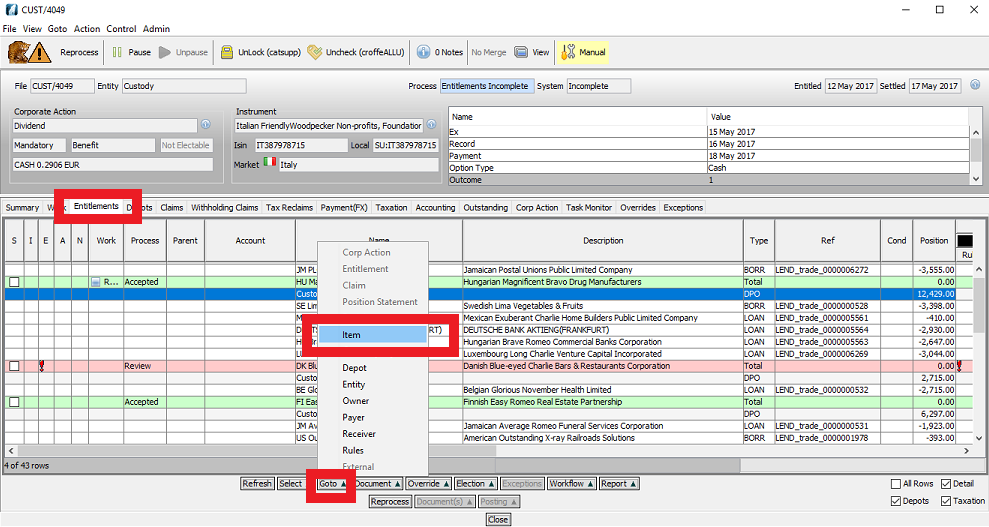
Go to the Goto tab.
Select Item from the list.
The Entitlement Position screen will be displayed, as below.
Select the Expected Postings tab.
In addition, from the main CATS CA File screen.
Select the Accounting tab.
Select the Expected Postings tab within that screen.
Company Confidential
