How to Add New Depot Static Data
Select the Static Data menu.
Select Parties.
Select Account.

The Account screen is displayed, as below.
Select the Entity required e.g. Custody.
Select the Type required from the drop-down box e.g. Depot.

Click Search.
The Depot search screen is displayed, as below.

Select New to add a new Depot.
The New Depot screen is displayed, as below.

Add Code in the Code field.
Add Short Name in the Short Name field.
Add Long Name in the Long Name field.
Add any other details required.
Select Save.
The editing of agent, book, client, counterparty (old), entity, tax authority, user and depot static uses similar screens so there is some overlap in the descriptions provided.
How to Edit Book Static Data
Select the Static Data menu.
Select Parties.
Select Account.
The Account screen is displayed, as below.
Select the Entity required e.g. Custody.
Select the Type required from the drop-down box e.g. Book.

Select Search.
The Book search screen is displayed, as below.
To find the required book enter a name in the Name field of the CATS Book identifier in the Code field.
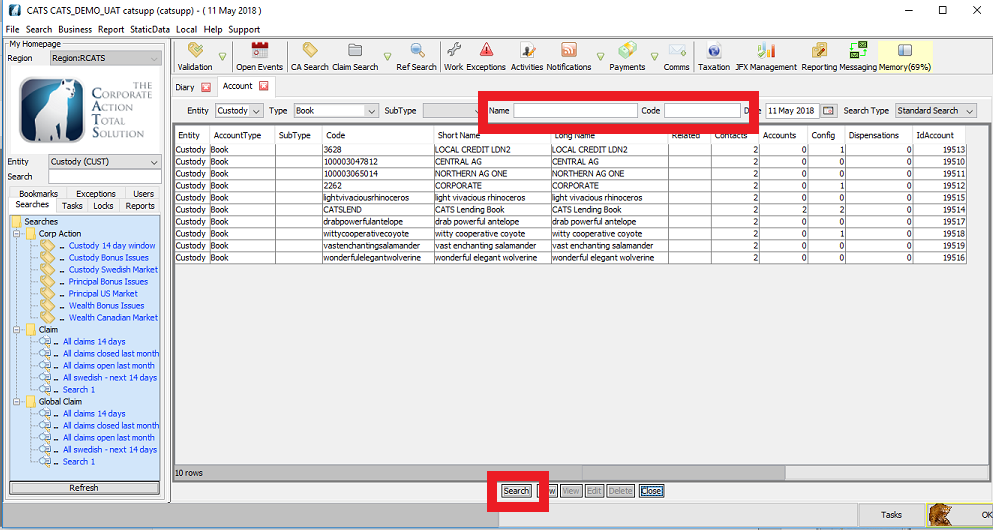
Select Search to list the books.

To edit a particular book.
Select the book from the list.
Click Edit.
NOTE: It is possible to enter wildcard searches in the Name and Code field.
G’%’ character is the wild card character. For example, entering G% in the Code field
would search for all Books with a name starting with the letter G.
The searches are case sensitive.
If there is too much data being returned when searching, an error message will be displayed stating a maximum of
1,000 rows can only be returned and the user needs to apply more filters to run the search.
The Party Base screen is displayed, as below.
To edit book settlement static.
Select the Settlement tab.

Select the settlement item from the list.
Click Edit.
The Party Settle screen is displayed, as below.
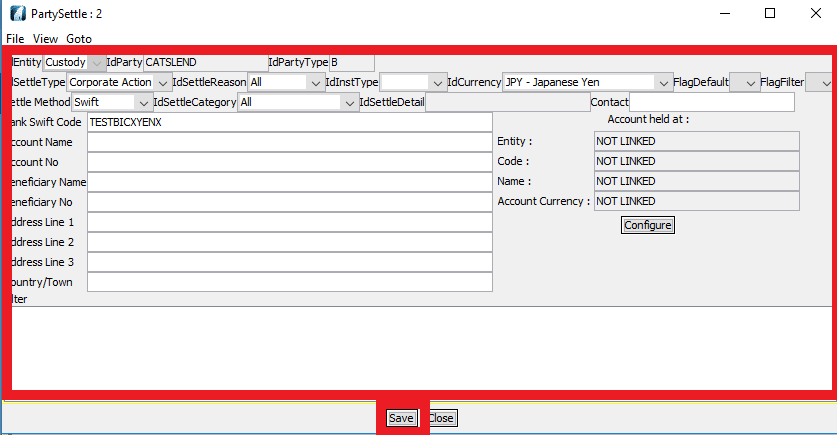
Modify the settlement information as required.
The IdSettleType field must be set to Corporate Action.
Set the IdSettleReason field to Claim if the settlement details are for a claim or Entitlement if for entitlement advices. Set to All if the settlement details are to be included in all searches.
If the settlement details are only to be used for a particular instrument type, then select that type from the IdInstType field. Leave blank if the settlement details are to be used for all instrument types.
If the settlement details are only to be used for a particular currency, then select that from the IdCurrency field. Leave blank if the settlement details are to be used for all currencies.
If the settlement details have some specific filtering applied. Set the FlagFilter field to Y and enter the filter description in the Filter Field. The actual filter requirements should be discussed with your CATS Support Team.
CATS can support a number of different settlement methods. Select the required method from the Settle Method field.
To select a particular settlement account category set the value from the IdSettleCategory field.
Click Save.
This will dismiss the Party Settle screen and save the settlement information.
NOTE: This will need to be validated by a Supervisor.
To create or edit select book communication information.
Select the Communication tab.
The Party Base screen will be displayed, as below.

Click New to create new communication item, or
Click Edit to change an existing one.
The PartyCommonNew screen is displayed, as below.

Confim the following.
The IdCommType field must be set to Corporate Action.
Set the IdCommReason field to the reason for the communication.
If the communication details are only to be used for a particular instrument type, then select that type from the IdInstType field. Leave blank if the communication details are to be used for all instrument types.
If the communication details have some specific filtering applied. Set the FlagFilter field to Y and enter the filter description in the filter field. The actual filter requirements should be discussed with your CATS Support Team.
CATS can support several different settlement methods.
Select the required method from the Comm Method field.
The other values entered will be dependent upon the Comm Method selected.
Click Save.
This will dismiss the PartyCommonNew screen and save the communication information.
The Party Base screen will be displayed, as below.
To edit specific configuration information.
Select the Configuration tab.

Select the configuration item to edit.
Click Edit.
The PartyConfig screen is displayed, as below.

Set the ConfigName field to the required configuration item.
Set the ConfigValue field to the required configuration value Y or N.
Set a period that the configuration is valid for in the PeriodStart and PeriodEnd fields.
Select the Save button.
This will dismiss the PartyConfig screen and save the configuration information.
To edit book cross reference information, select the Cross Reference tab.
To edit book specific diary items, select the Diary tab.
This dispensation tab is not used for Book static.
To edit Book specific properties, select the Property tab.
To edit any roles for the book, select the Role tab.
How to Edit Agent Static Data
Select the Static Data menu.
Select Parties.
Select Account.
The Account screen is displayed, as below.
Select the Entity required e.g. Custody.
To edit a particular agent, select the Type from the drop-down box e.g. Agent.

Click Search.
The Agent search screen is displayed, as below.
To find the required Agent enter a Name in the Name field or the CATS Agent identifier in the Code field.

Click Search, to list the agents.
NOTE: It is possible to enter wildcard searches in the Name and Code field. A’%’ character is the wildcard character.
For example, entering A% in the Code field would search for all Agents with a name starting with the letter A.
The searches are case sensitive.
The Agent edit screen is displayed, as below.

To edit a particular agent, select the agent from the list.
Click Edit.
The Party Base screen is displayed, as below.

The editing of Settlement, Communication, Configuration, Cross Reference, Diary, Property, Dispensation and Role information is as described in the above for book static.
How to Edit Counterparty (Old) Static Data
Select the Static Data menu.
Select Parties.
Select Account.
The Account screen is displayed, as below.
Select the Entity required e.g. Custody.
Select the Type required from the drop-down box e.g. Counterparty(Old).
Click Search.
The Counterparty(Old) search screen is displayed, as below.
To find the required Counterparty(old) enter a name in the Name field or the CATS Counterparty(old) identifier in the Code field.

Click Search to list the counterparties.
NOTE: It is possible to enter wildcard searches in the Name and Code field. A’%’ character is the wild card character.
For example, entering A% in the Code field would search for all counterparties with a name starting with the letter A. The searches are case sensitive.
If there is too much data being returned when searching, an error message will be displayed stating a maximum of 1,000 rows can only be returned and
the user needs to apply more filters to run the search.
To edit a Counterparty.

Select the Counterparty.
Click Edit.
The Counterparty(Old) edit screen is displayed, as below.
The editing of Settlement, Communication, Configuration, Cross Reference, Diary, Property, Dispensation and Role information is as described in the above for book static.
How to Edit Depot Static Data
Select the Static Data menu.
Select Parties.
Select Account.
The Account screen is displayed, as below.
Select the Entity required e.g. Custody.
Select the Type required from the drop-down box e.g. Depot.

Click Search.
The Depot search screen is displayed, as below.
To find the required Depot enter a Name in the Name field or the CATS Depot identifier in the Code field.

Click Search, to list the depots.
NOTE: It is possible to enter wildcard searches in the Name and Code field. A’%’ character is the wild card character. For example, entering A% in the Code field would search for all counterparties with a name starting with the letter A. The searches are case sensitive.
To edit a particular depot.

Select the Depot.
Click Edit.
The Depot edit screen will be displayed, as below.

The editing of Settlement, Communication, Configuration, Cross Reference, Diary, Property, Dispensation and Role information is as described in the above for book static.
How to Edit Entity Static Data
Select the Static Data menu.
Select Parties.
Select Account.
The Account screen is displayed, as below.
Select the Entity required e.g. Custody.
Select the Type required from the drop-down box e.g. Entity.

Click Search.
The Entity search screen is displayed, as below.
To find the required Depot enter a Name in the Name field or the CATS Depot identifier in the Code field.

Click Search, to list the entity.
NOTE: It is possible to enter wildcard searches in the Name and Code field. A’%’ character is the wild card character. For example, entering A% in the Code field would search for all counterparties with a name starting with the letter A. The searches are case sensitive.
To edit the entity.
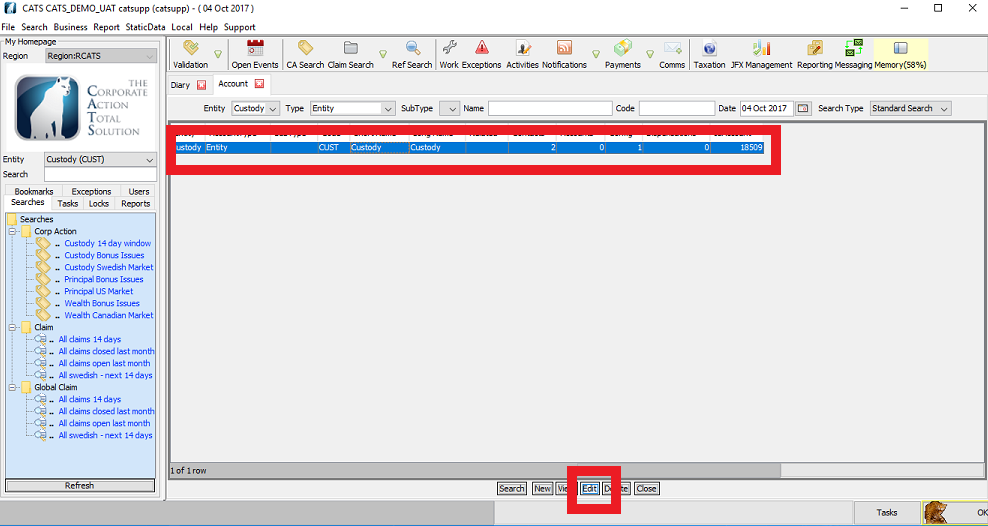
Select the required entity from the list.
Click Edit.
The editing of Settlement, Communication, Configuration, Cross Reference, Diary, Property, Dispensation and Role information is as described in the above for book static.
How to Edit Region Static Data
Select the Static Data menu.
Select Parties.
Select Account.
NOTE: This should only be modified after discussion with The Corporate Action Company.
How to Edit Entity Static Data
Select the Static Data menu.
Select Parties.
Select Account.
The Account screen is displayed, as below.
Select the Entity required e.g. Custody.
Select the Type required from the drop-down box e.g. Tax Authority.

Click Search.

Select the row.
Click Edit.
The editing of Settlement, Communication, Configuration, Cross Reference, Diary, Property,
Dispensation and Role information is as described in the above for book static.
NOTE: This should only be modified after discussion with The Corporate Action Company.
How to Edit Entity Static Data
Select the Static Data menu.
Select Parties.
Select Account.
The Account screen is displayed, as below.
Select the Entity required e.g. Custody.
Select the Type required from the drop-down box e.g. User.

Click Search to list the users.
The User Entity search screen is displayed, as below.

To edit the user.
Select the User you wish to edit.
Click Edit

The editing of Settlement, Communication, Configuration, Cross Reference, Diary, Property, Dispensation and Role information is as described in the above for book static.
How to Edit Instrumment Static Data
Select the Static Data menu.
Select Parties.
Select Account.
The blank Instrumment search screen is displayed, as below.
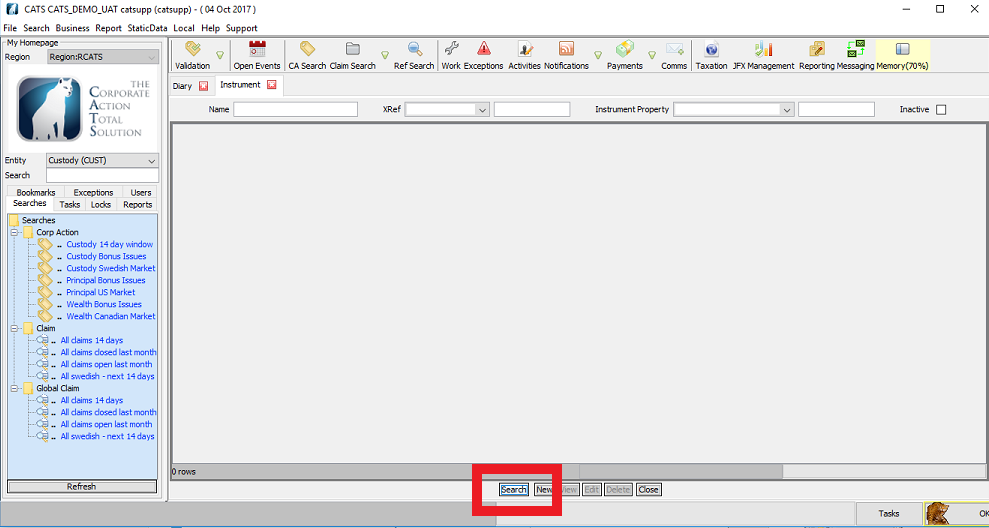
Click Search to list the instrument.
The Instrumment search screen is displayed, as below.
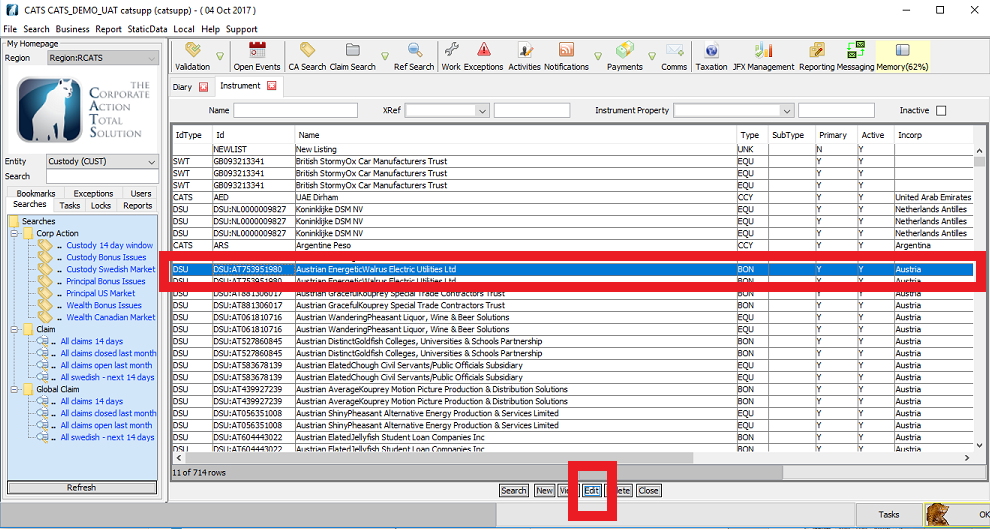
Select the Instrumment from the list.
Click Edit.
The Instrument edit screen will be displayed, as below.
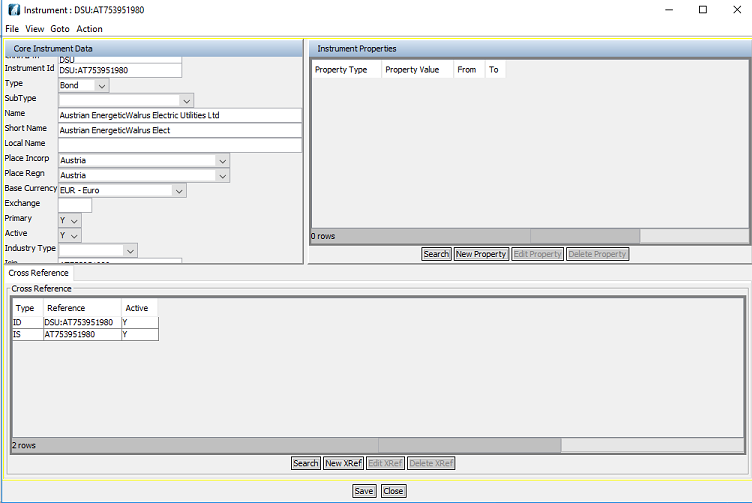
HOW TO ADD NEW INSTRUMENT XREF
After finding the Instrument (as shown above).
Select New XRef.
The Instrument XRef New screen will be displayed, as below.
Select an InstrumentXRefType of Isin.
Enter the Isin value.
Set Active as Y.
Click Save.
The Instrument should then be avaliable.
How to Edit Exchange Rates Static Data
Select the StaticData menu.
Select Instrument.
Select Exchange Rates.

The Exchange Rates screen is displayed, as below.

Select Edit.
The Exchange Rate screen will be displayed, as below.

Select IdCurrFrom.
Select IdCurrTo.
Enter the Rate.
Click Save.
The new rate will be displayed in the Exchanged Rates file below.

How to Edit Place Static Data
Select the StaticData menu.
Select Location.
Select Place.

This lists all the Places configured for this entity, as displayed below.
Select the New tab to create a new country.
The Place New edit screen will be displayed, as below.

How to Edit Calendar Static Data
Select the StaticData menu.
Select Instrument.
Select Exchange Rates.

The Calendar screen is displayed, as below.

Click New to create a new calendar.
The Bus Day Calendar New screen is displayed, as below.

Enter relevant information in the first two boxes e.g. below.
MK: _____
Calendar: _____

Click New.
The screen is displayed, as below.


Enter Id countries in the IdCalendar.
Enter the date in BusDayDate.
Enter the type in BusDayType, example H.
Enter the Description, example Easter, as displayed above.
Click Save or Close.
FROM THE CALENDAR SCREEN

Select requried row.
Click Edit.
The Bus Day Calendar screen is displayed, as below.
Alter the present information if you wish to and select Save to store the changes.
Select Close to cancel the changes and dismiss the dialog box.
How to Edit Currency Static Data
Select the StaticData menu.
Select Instrument.
Select Currency.
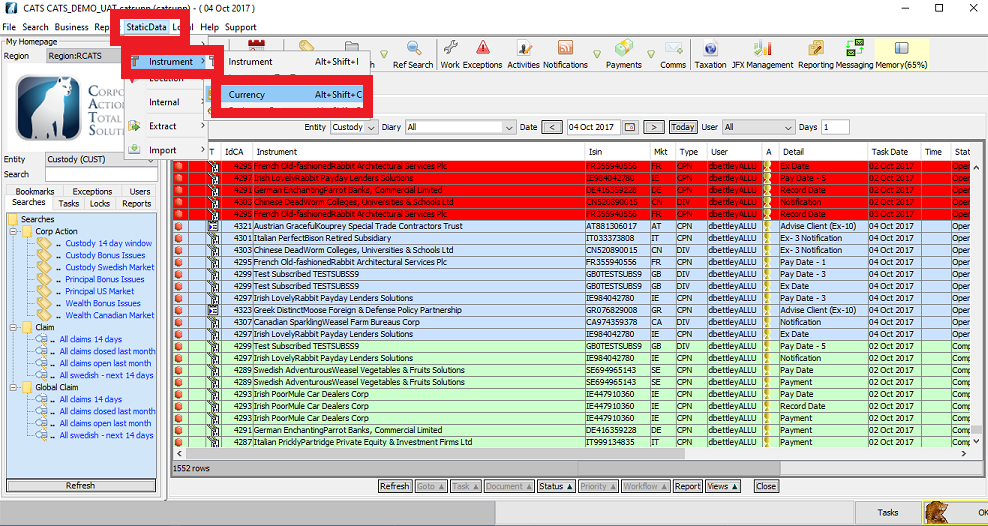
A list of all currencies will be displayed, as below.
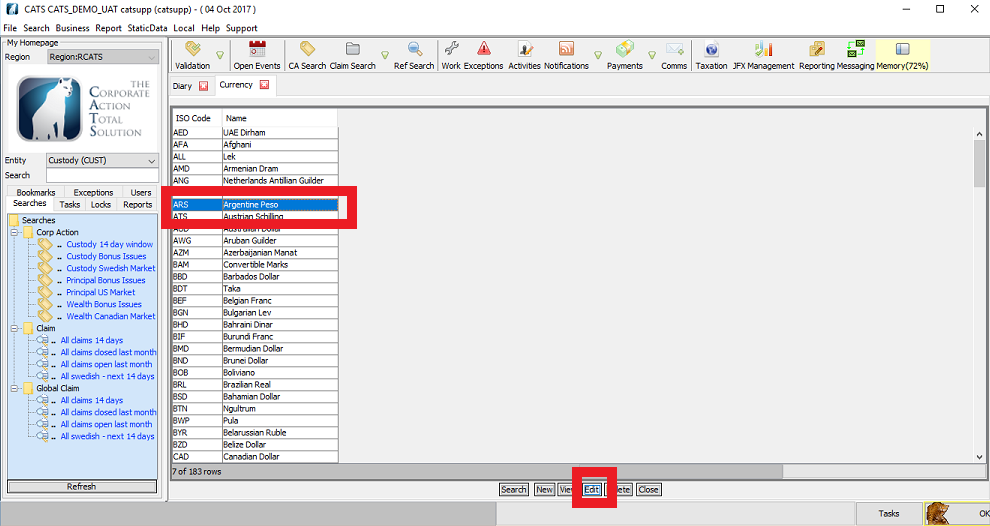
Select the required currency from the list.
Select Edit.
The Currency screen is displayed, as below.

Set the currency ISO Code in the ISO Code field.
Set the currency name in the Name field.
Set the number of decimal places that currency will be processed within CATS within the Decimals field.
If the currency is processed within CATS set the Active field to Y or set to N if the currency is not processed within CATS.
Where the currency has a fixed conversion rate to Euro set the value in the Rate To Euro field.
Select Save to store the changes.
Select Close to cancel the changes and dismiss the dialog box.
How to Validate Edited Static Data
Static data changes are typically validated by a different user from the one that made the data change.
Select Validation menu.
Select Validation Non- CA Modifications.

The list of pending static data changes is displayed in the Static Validation screen shown below.
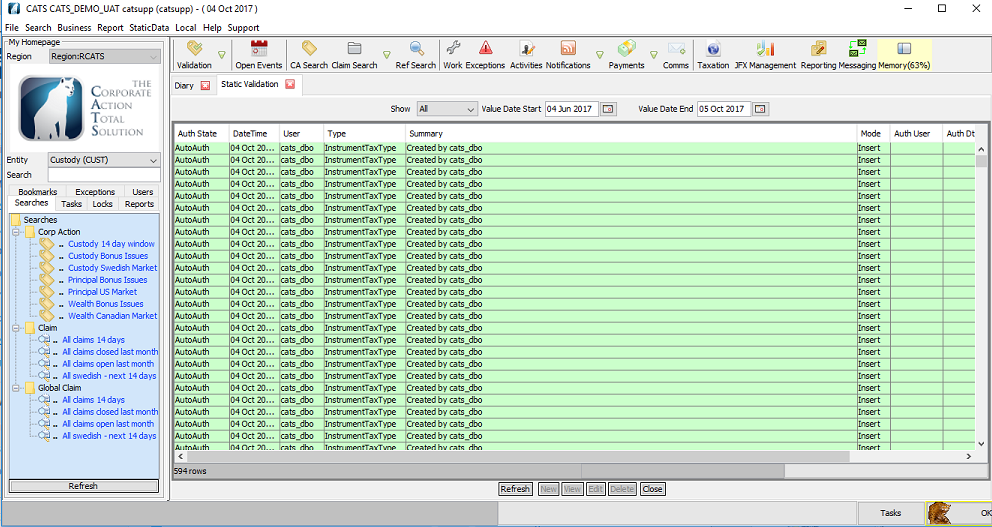
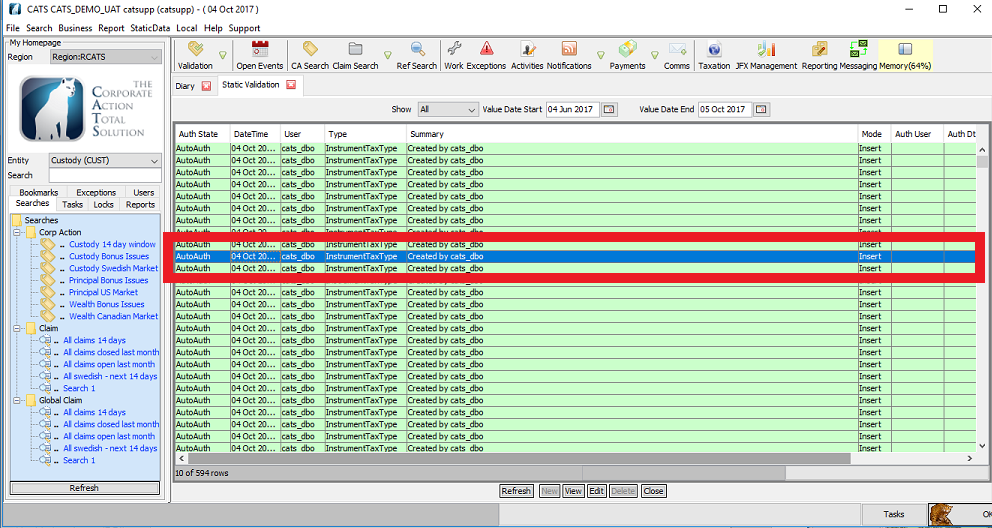
Double click on the item to be validated.
The AuditStatic screen will be displayed, as below.

Select View Old Object or
Select View New Object or
Click Close.
Detaills of the change are highlighted on this screen.
Select the Accept change or the Accept change option from the Validate menu.
The Validate the displayed change? screen is displayed, as below.
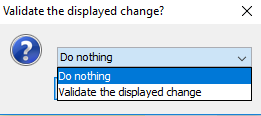
Select Validate the displayed change.
The Information screen is displayed, as below.
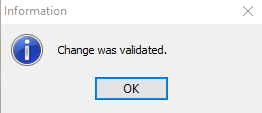
Click OK to validate the change.
Using Accept change will mean that the new version of the object is used with the CATS processing.
Select Do nothing and the change is NOT accepted. No action is taken.
Select Validate the displayed change to accept the change. The change is therefore applied to the CATS processing.
To reject the change.
Select the Reject change button or the Reject change option from the Validate menu.
Rejecting the change will mean that the old version of the object is used with the CATS processing.
The Reject the displayed change? dialog box is displayed, as below.
Company Confidential
