How to Record Single Election Decisions
Election decisions can be recorded on a single entitlement item. This is done from within the CATS CA File screens. Election decisions can be recorded on a single entitlement item. This is done from within the CATS CA File screens. This allows full or partial election, across all options, for a single trade or position.This allows full or partial election, across all options, for a single trade or position.
Open the CA file Screen and go to the Entitlements tab.
To add any election decision, the CATS CA File must be locked to that user.
Ensure the file is locked to you. If not locked press the Lock button at the top of the CA File screen, as below.

Select the entitlement line you wish to record the election decision for.
Click Election.
Select Elect.
The Election Input screen is displayed, as below.
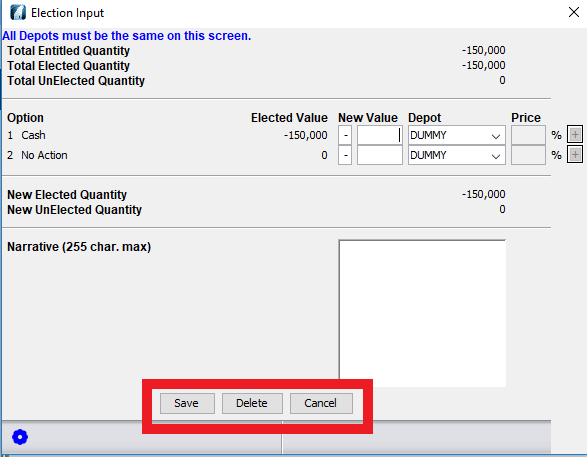
Enter the election amount for each option in the fields provided.
Enter any text narrative in the Narrative field provided.
Press Save to store the election decision and apply it to the CATS processing of the corporate action.
Press Delete to remove an existing election decision and to update the CATS processing of the corporate action.
Press Cancel to end the election decision capture process and dismiss the dialog box.
How to Record Bulk Election Decisions
This allows for election decisions to be recorded when multiple trade and positions rows are selected in the CATS CA File Entitlements screen. It allows the election of a single option for the full unelected values of each trade and position selected.
Open the CA file Screen and go to the Entitlements tab.
To add any election decision, the CATS CA File must be locked to that user.
Ensure the file is locked to you. If not locked press the Lock button at the top of the CA File screen, as below.
Select the entitlement lines you wish to record the election decision for by holding down the Ctrl (Control key) on your keyboard and selecting the rows required.
Click Election.
Select Elect.
The Multi Election Input screen is displayed, as below.

Select the required option from the Options list.
Press Save to apply that election decision to all selected entitlements and apply them to the CATS processing of the corporate action.
Press Delete to remove any existing election decisions from all selected entitlements and to update the CATS processing of the corporate action.
The Delete options screen will be displayed, as below.

Press Cancel to end the election decision capture process and dismiss the dialog box.
How to Modify Existing Election Decisions
The procedure is the same as described in the HOW TO RECORD SINGLE ELECTION DECISIONS section.
How to Delete Existing Election Decisions
The procedure is the same as described in the HOW TO RECORD SINGLE ELECTION DECISIONS and the HOW TO RECORD BULK ELECTION DECISIONS
section.
This both cancels the elections for the trade or position and recreates the provisional set of entitlements for each of the options.
How to View an Audit of Election Entries
CATS maintain a full election audit. This includes details of the current election status and all earlier elections that have been inserted, modified or cancelled.
Open the CA File Screen.
Select the Entitlements tab.

Select the row you wish to review the election audit for.
Click Election.
Select Election Audit.
The Election Audit screen is displayed, as below.

Company Confidential
