How to Create a new Corporate Action
When you create Corporate Actions, it is against a master instrument reference (an ISIN) that would create corporate
actions against all of the other cross references associated with that instrument.
To create a corporate action from within the CATS application.
Select the Business menu.
Select Corp Action.
Select New Corp Action (Manual).

The Corp Action New entry screen is displayed, as below.

Click the Lookup button in the Instrument Details section.
The Which Instrument? screen will be displayed, as below.

You can search for the selected instrument by entering a value in the Name field.
You can use a % character for a wildcard search.
For example: Ita% would list all instruments starting with the text Ita.
You can search for the selected instrument by cross reference.
Select the XRef type from the XRef drop-down box and enter the X Reference value.
Select Search.
Inactive instruments are included in the search if the check box is selected.
The screen will be displayed, as below.

Highlight the required instrument.
Click Search.
The screen will be displayed, as below.

CATS holds a default set of required dates and values for each corporate action.
From the drop-down box displayed, as below

Select CA Type and select the type of corporate action you require.
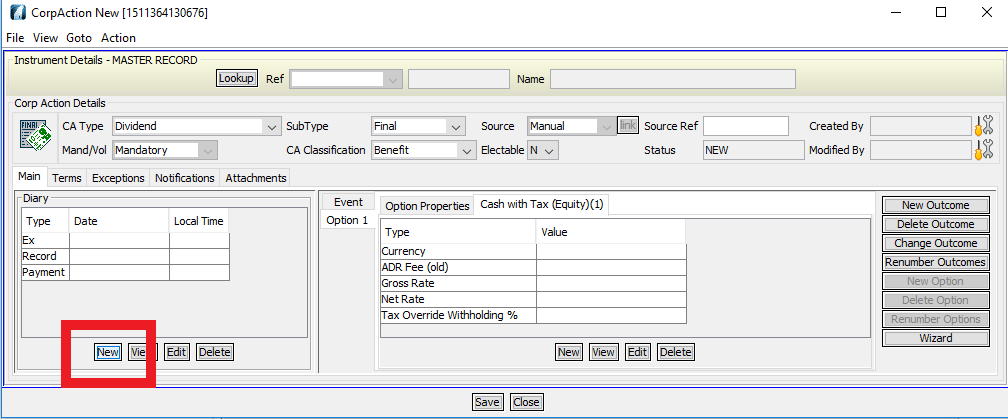
Select New in the Diary section if there are any missing date types.
The screen is displayed, as below.

Select Type from the drop-down box.


Enter Date.
Click Save.

Enter required dates for each Type in the diary section, as above.
Click on the Date.
Select View to view.
Select Edit to edit.
Select Delete to delete.

The Value box of each Option and Type need to be completed as shown above.
Select New if there are any missing Types or delete any that are not required.
Select View to view.
Select Edit to edit.
Select Delete to delete.
For example:
Click on Currency.
The screen is displayed, as below.
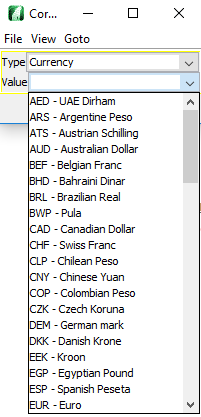
Select the required Currency from the Type drop-down box.
Complete any relevant Values for each Type.
Select the processing Value for the corporate action from the provided list of values or enter the information manually.
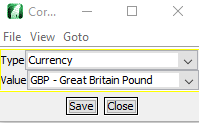
Click Save.
The number and type of Options and Outcomes can be modified and more than one can be added per event.
The Corp Action New screen will be displayed, as below.
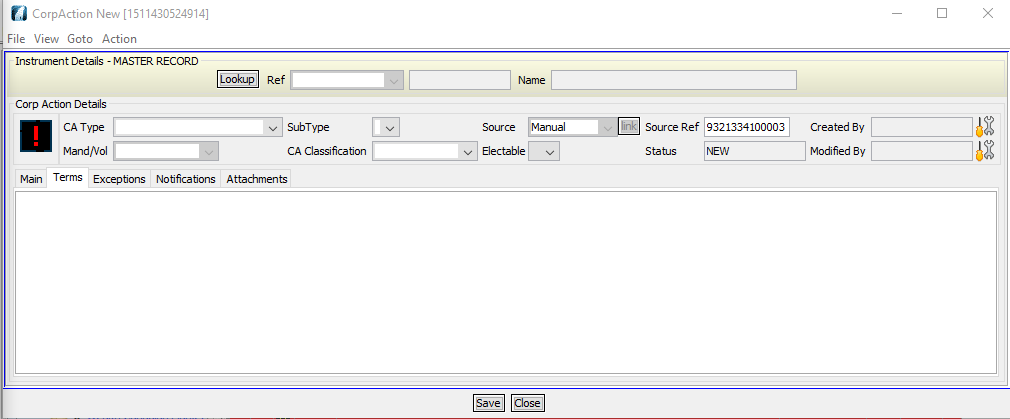
You must enter a value in the Source Ref field.
To add text narrative to the event.
Click the Terms tab and enter text in the field provided.
To add Documents to the event.
Click Attachments.
Click Save once all the relevant information has been added.
The Are you sure? screen will be displayed, as below.

Click Yes to store any changes and to dismiss the screen.
The corporate action is the avaliable for validation in the Validate CAs queue.
How to Modify an Existing Corporate Action
You can access the screen to modify an existing Corporate Action through a number of methods. From the Main Diary View, if the diary task is associated with a corporate action.
Select the Diary Task.

Select Goto.
Select Edit Corp Action.
The Corp Action screen will be displayed, as below.

Select the values that nneed modifying.
Click Save.
The Are you sure? screen will be displayed, as below.

- Click Yes to store any changes and to dismiss the screen.
The corporate action is then avaliable for validationin the Validate CAs queue.
How to Modify an Existing Corporate Action
FROM THE CATS CA SEARCH
Select Searches.
Select Corp Action.

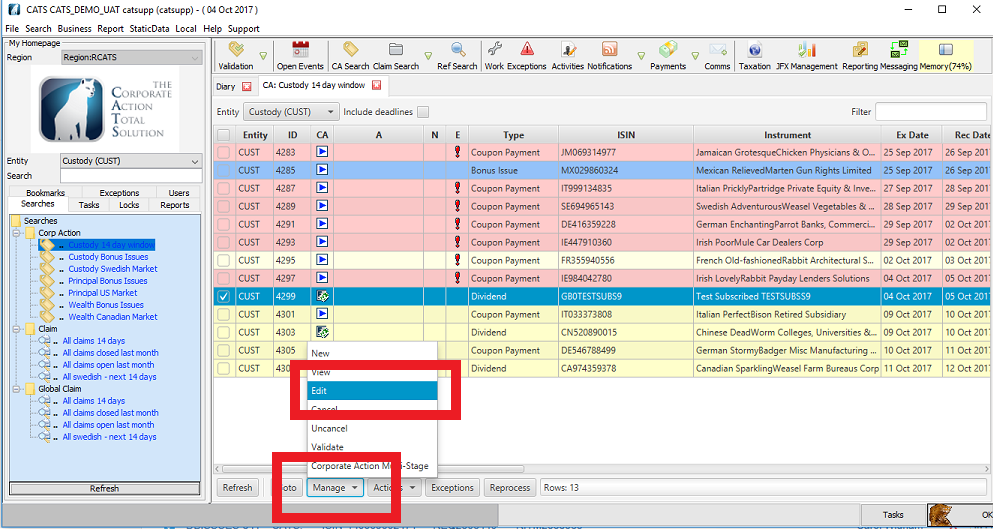
Select the Corporate Action you want to modify by ticking the box in the S column.
Select Manage.
Click Edit.
The Corp Action screen will be displayed, as below.
From the My Homepage, main CATS desktop.

Select the values that need modifying.
Click Save.
The Are you sure? screen will be displayed, as below.
Click Yes to store any changes and to dismiss the screen.
The corporate action is then avaliable for validationin in the Validate CAs queue.
How to Cancel a Corporate Action
You can cancel a corporate action, for example by selecting it from a list of corporate actions. From the Main Screen.
Select Open Events.

Select the Corporate Action you want to modify by ticking the box in the S column.
Select Manage.
Click Cancel.
The Corp Action screen will be displayed, as below.
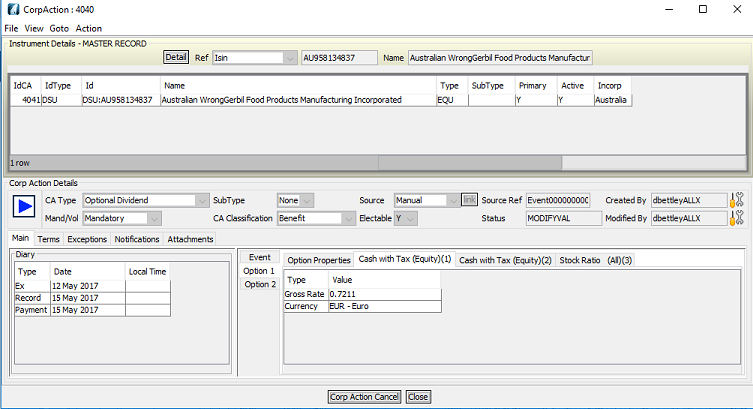
Click Corp Action Cancel.
The Are you sure? screen will be displayed, as below.

Click Yes.
The corporate action is then avaliable for validation in the Validate CAs queue.
How to Validate a Corporate Action
The validation of all Corporate actions, whether new announcements or modifications, are done from the Validate CAs screen.
From the main CATS Desktop screen.
Select Validation.

The corporate action Validate CAs screen will be displayed, as below.
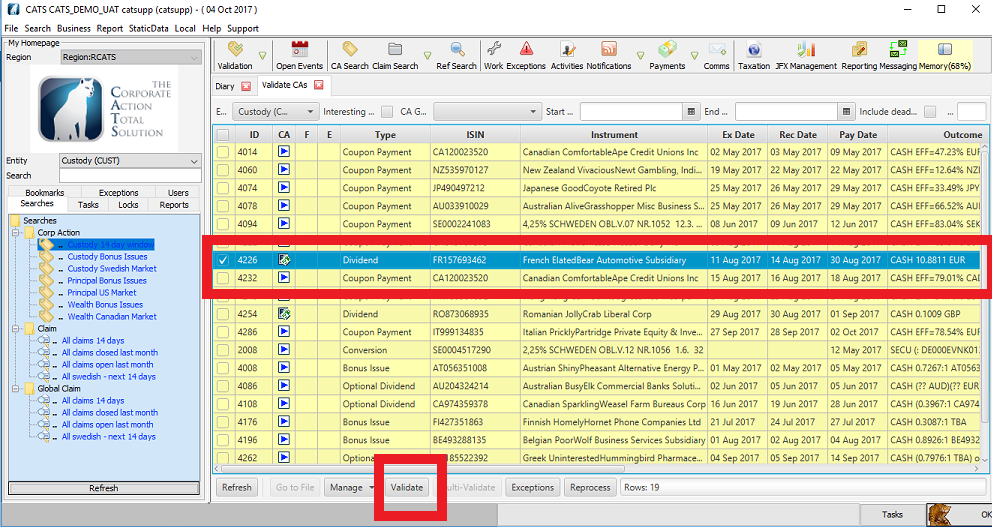
Select the corporate action that is to be validated by clicking on the row.
Click Validate.
The screen will be displayed, as below.

To validate the corporate action.
Click Validate.
To invalidate a corporate action.
Click Reject.
The will, also dismiss the validation screen.
Invalidating a new corporate action will cancel the corporate action.
Invalidating a modification to a corporate action will re-instate the previous version of the corporate action.
What happens when a Corporate Action is Validated?
CATS check if any business entities have interest in this corporate action. Where interest is any trades and/or positions.
If there is interest, then CATS will create a CA File which is the main processing record for the corporate action in that business entity.
If a CA File already exists, then a new one is NOT created. A CATS CA File has a unique reference in the system, this has the form.
Entity Id/CA Id. For example, ZZP/1208 is the main processing record for corporate action 1208 in entity ZZP.
After creating the CA File CATS reprocesses the file. This is a term often referred to in relation to CATS.
A reprocess is the collection of functions automatically performed by CATS to ensure the processing state of a corporate action is correct.
How to Search for Corporate Action
You can search for corporate actions using a variety of functions.
VIA THE CA SEARCH
Click on the CA Search button from the CATS desktop.

The new Corporate Action Search screen is displayed, as below.

Enter a name in the Search Name field if the user wishes to save a particular CA search.
Click Save as New.
Three types of corporate action search are available from this form.
All – All corporate actions are listed based on the filters entered.
Interesting – Only corporate actions interesting to business entities are listed.
Select the business of interest from the Entity field in the Interest section.
Status – Only corporate actions with a particular processing status are listed.
The status is filtered using the controls in the Status section.
Different types of corporate actions can be searched for. The filters are available in the Corp Action section of the form.
Corporate actions for specific instruments can be searched for.
By default, corporate actions with exceptions are listed. To remove these from the list set the Flg Exceptions field to N in the Filters section.
By default, cancelled corporate actions are listed. To exclude these from the list set the Include Cancellations field to N in the Filters section.
The saved search appears in the list Corp Action Searches in the My Homepage section of the CATS desktop.

VIA THE SEARCH FIELD FROM THE CATS HOME PAGE
There are several search options available from this field.


Press F2 to come directly to the field and place a ':' in it for an instrument search.
For example, entering :XX1234567890 [where XX1234567890 represents an ISIN] would perform a search for all Interesting corporate actions on this security.
Press F3 to come directly to the field and clear the field for another search. You can enter a CATS CA file reference or trade reference.
You can also prefix with an entity reference for example CUST/3660. Where CUST is the entity code and 3660 is the corporate action reference id. As in the example above right.
How to Find the Corporate Action Using the Ref Search Functions
HOW TO FIND CORP ACTION FROM THE CA REF
There are four options avaliable.
From the main CATS desktop.
Select Ref Searchmenu.
Select Find Corp Action from CA Ref.

The Input screen will be displayed below.

Enter a valid CA Ref to Edit.
Click OK.
The Corporate Action details are displayed in the screen, as below.

HOW TO FIND CORP ACTION FROM CA SOURCE REF
Go to the CATS Main screen.
Select Ref Search.
Select Find Corp Action from CA Source Ref.

The Input screen will be displayed, as below.

Enter a valid CA Source Ref.
Click OK.
The Corp Action details are displayed in the screen, as below.

HOW TO FIND FILE FROM CA REF
Go to the CATS Main screen.
Select Ref Search.
Select Find File from CA Ref.

The Input screen will be displayed, as below.

Enter a valid CA Ref for Entity(CUST).
Click OK.
The CATS CA file screen will displayed in the screen, as below.

The procedure is the same as described in the HOW TO FIND FILE FROM A CA REF in the CA EVENT CAPTURE AND CLEANSING section of the manual.
HOW TO FIND FILE FROM CA SOURCE REF
Go to the CATS Main screen.
Select Ref Search.
Select Find File from CA Source Ref.

The Input screen will be displayed, as below.
Enter a valid CA Source Ref.
Click OK.
The CATS CA file screen displayed in the screen, as below.
HOW TO FIND THE CORPORATE ACTION REFERENCE ID
This reference Id can be found by several methods.
It is the numeric part of the CATS corporate action file reference.
In this example below, the unique corporate action reference Id is 4323.
From the main CATS desktop.

Double click on the required row.
The screen will be displayed as below, with the CA Ref in the top left-hand corner.

The corporate action reference Id is the unique reference number CATS uses for this corporate action.
It is NOT the reference Id from any external feed or system.
This reference Id is created by CATS and unique for that corporate action REGARDLESS of any business entity processing.
Go to the CATS main screen and the reference Id can also be found by selecting the Open Events screen.
Select Open Events.
The Open Events screen will be displayed, as below.
The corporate action reference ID column is shown, as below.

HOW TO ADD ELECTION MINIMUM AND ELECTION MULTIPLE VALUES
From the Main Diary View.
Select the required Diary Task.

Select Goto.
Select Edit Corp Action.
The Corp Action screen will be displayed, as below.

Select the Event tab.
Select New.
The screen will be displayed, as below.

There are the following options.

Select Type Election Minimum from the drop-down box.
Enter a Value.
Select Save or

Select Type Election Multiple from the drop-down box.
Enter a Value.
Select Save.

Please Note: This will then need to be validated by a supervisor.
Company Confidential
