REF SEARCH


HOW TO FIND ACCOUNT BY INTERNAL ID ACCOUNT

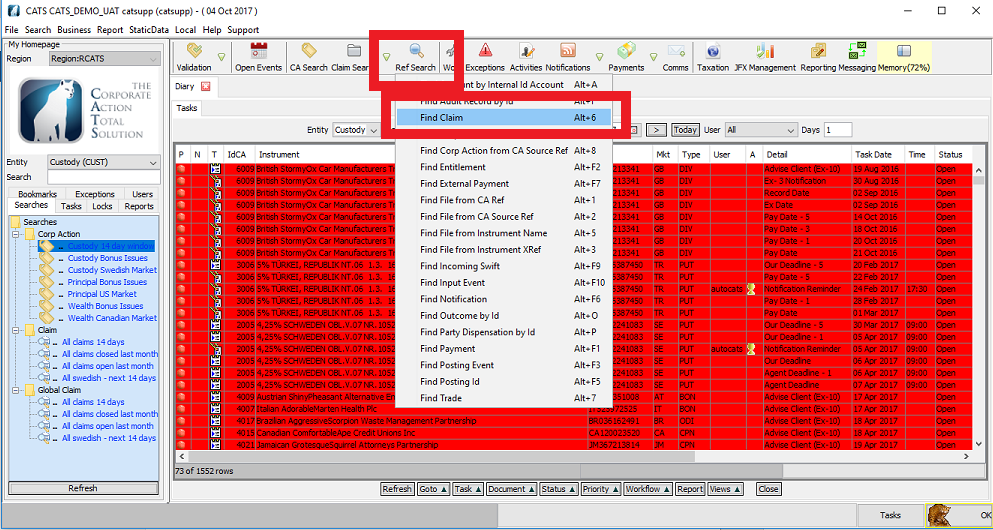
Go to the CATS Main Screen

  • Select Ref Search.
  • Select Find Account by Internal Id Account.


The Input screen will be displayed, as below.


  • Enter an Internal Id Account.
  • Click OK.

The Party Base screen will be displayed, as below.


HOW TO FIND AN INTERNAL ID ACCOUNT NUMBER

Go to the CATS Main Screen

  • Select Static Data.
  • Select Parties.
  • Select Account.


The Account screen will be displayed, as below.


  • Enter a Code or
  • Enter a partialName.

You can search for the name by entering a value in the Name field.

You can use a % character for a wildcard search. For example: Ita% would list all names starting with the text Ita.

Please note: A code or partial name must be entered.


  • Click Search.

The user should refain from selecting search with no values entered. An error message saying too many rows would appear.

The ID Account number can be found in the ID Account column.

The screen will be displayed, as below.


  • Double click on one of the accounts.


The Party Base screen is displayed, as below.


This also shows the ID Account number.


How to Find Audit Record by ID


Go to the CATS Main Screen.

  • Select Ref Search.
  • Select Find Audit Record by Id.


The Input screen will be displayed, as below.


  • Enter an Id Input Event.
  • Click OK.

The Audit Static screen will be displayed, as below.


How to find a Claim


Go to the CATS Main Screen.

  • Select Ref Search.
  • Select Find Claim.


The Input screen will be displayed, as below.


  • Enter a valid Claim Ref.
  • Click OK.

The Claim screen will be displayed, as below.


The procedure is the same as described in the HOW TO FIND A CLAIM in the CLAIMS AND RISK section of the manual.


How to find a Corp Action from CA Ref


Go to the CATS Main screen.

  • Select Ref Search.
  • Select Find Corp Action from CA Ref.


The Input screen will be displayed, as below.


  • Enter a valid CA Ref to Edit.
  • Click OK.

The Corporate Action details are displayed in the screen, as below.


The procedure is the same as described in the HOW TO FIND THE CORPORATE ACTION USING THE REF SEARCH FUNCTIONS in theCA EVENT CAPTURE AND CLEANSING section of the manual.


How to find a Corp Action from CA Source Ref


Go to the CATS Main screen.

  • Select Ref Search.
  • Select Find Corp Action from CA Source Ref.


The Input screen will be displayed, as below.


  • Enter a valid CA Source Ref.
  • Click OK.

The Corp Action details are displayed in the screen, as below.


The procedure is the same as described in the HOW TO FIND THE CORP ACTION FROM CA SOURCE REF in the CA EVENT CAPTURE AND CLEANSING section of the manual.


How to find an Entitlement


Go to the CATS Main screen.

  • Select Ref Search.
  • Select Find Entitlement.


The Input screen will be displayed, as below.


  • Enter an Entitlement Ref.
  • Click OK.

The Entitlement screen will be displayed in the screen, as below.


How to find an External Payment


Go to the CATS Main screen.

  • Select Ref Search.
  • Select Find External Payment.


The Input screen will be displayed, as below.


  • Enter a valid External Payment Ref.
  • Click OK.

The External Payment screen will displayed in the screen, as below.


How to find a File from the CA Ref


Go to the CATS Main screen.

  • Select Ref Search.
  • Select Find File from CA Ref.


The Input screen will be displayed, as below.


  • Enter a valid CA Ref for Entity(CUST).
  • Click OK.

The CATS CA file screen will displayed in the screen, as below.


The procedure is the same as described in the HOW TO FIND FILE FROM A CA REF in the CA EVENT CAPTURE AND CLEANSING section of the manual.


How to find a File from CA Source Ref


Go to the CATS Main screen.

  • Select Ref Search.
  • Select Find File from CA Source Ref.


The Input screen will be displayed, as below.


  • Enter a valid CA Source Ref.
  • Click OK.

The CATS CA file screen displayed in the screen, as below.


The procedure is the same as described in the HOW TO FIND FILE FROM A CA SOURCE REF in the CA EVENT CAPTURE AND CLEANSING section of the manual.


How to Find File from Instrument Name


Go to the CATS Main screen.

  • Select Ref Search.
  • Select Find File from Instrument Name.


The Input screen will be displayed, as below.


  • Enter a valid Instrument Name.
  • Click OK.

The Corporate Action details are displayed in the screen, as below.

This function will search from a CATS file, on a corporate action on an instrument with this name.
If found the CATS CA file screen displayed, as below. If one cannot be found nothing is displayed.


How to Find File from Instrument XRef


Go to the CATS Main screen.

  • Select Ref Search.
  • Select Find File from Instrument XRef.


The Input screen will be displayed, as below.


  • Enter a valid Instrument XRef(e.g. Isin number).
  • Click OK.

This function will search for a CATS file, on a corporate action on an instrument with this cross reference. If found the CATS CA file screen is displayed, as below. If one cannot be found nothing is displayed.


How to Find Incoming Swift


Go to the CATS Main screen.

  • Select Ref Search.
  • Select Find Incoming Swift.


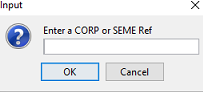
The Input screen will be displayed, as below.


  • Enter a valid CORP or SEME Ref.
  • Click OK.

If the reference and swift(s) are found The SWIFT TREE FOR CORP/SEME will be displayed, as below.


How to Find Input Event


Go to the CATS Main screen.

  • Select Ref Search.
  • Select Find Input Event.


The Input screen will be displayed, as below.


  • Enter a valid Id Input Event.
  • Click OK.


How to Find a Notification


Go to the CATS Main screen.

  • Select Ref Search.
  • Select Find Notification.


The Input screen will be displayed, as below.


  • Enter a valid Notification Ref(e.g. ID number).
  • Click OK.

The Notification screen will be displayed in the screen, as below.


How to Find Outcome by ID


Go to the CATS Main screen.

  • Select Ref Search.
  • Select Find Outcome by Id.


The Input screen will be displayed, as below.


  • Enter a valid Outcome Reference.
  • Click OK.

The Entitlement Trade screen will be displayed, as below.


How to Find Party Dispensation by ID


Go to the CATS Main screen.

  • Select Ref Search.
  • Select Find Party Dispensation by Id.


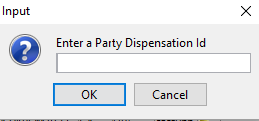
The Input screen will be displayed, as below.


  • Enter a Party Dispensation Id.
  • Click OK.


How to Find Payment


Go to the CATS Main screen.

  • Select Ref Search.
  • Select Find Payment.


The Input screen will be displayed, as below.


  • Enter a valid Payment Ref.
  • Click OK.


How to Find a Posting Event


Go to the CATS Main screen.

  • Select Ref Search.
  • Select Find Posting Event.


The Input screen will be displayed, as below.


  • Enter a valid Posting Event Ref.
  • Click OK.


How to Find a Posting ID


Go to the CATS Main screen.

  • Select Ref Search.
  • Select Find Posting Id.


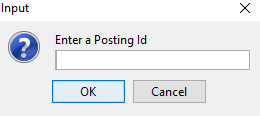
The Input screen will be displayed, as below.


  • Enter a valid CA Ref to Edit.
  • Click OK.


How to Find a Trade


Go to the CATS Main screen.

  • Select Ref Search.
  • Select Find Trade.


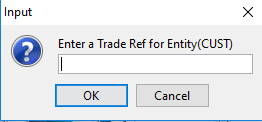
The Input screen will be displayed, as below.


  • Enter a valid Trade Ref for Entity(CUST).
  • Click OK.

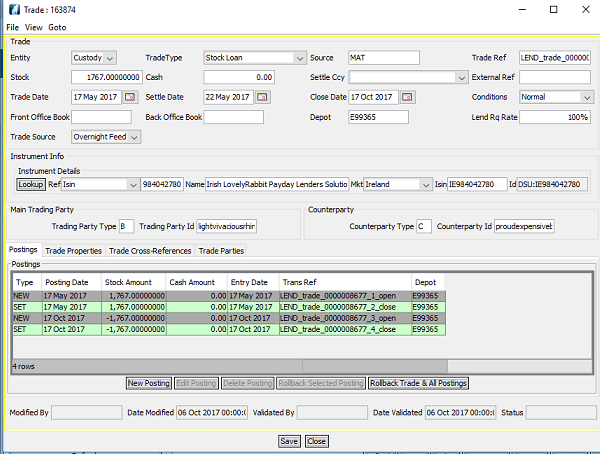
The Trade screen will be displayed, as below.


The procedure is the same as described in the HOW TO FIND THE CORPORATE ACTION USING THE REF SEARCH FUNCTIONS in the CA EVENT CAPTURE AND CLEANSING section of the manual.


Company Confidential