How to Log Into Cats ECCP
How to Create a New CATS Account and Login
If you are logging into CATS for the first time depending on the environment use one of the following addresses.
| User Acceptance Testing (UAT) | - | http://catstst.euroccp.prod/ |
| Production | - | http://catstst.euroccp.prod/ |
Type the required address in your browser.
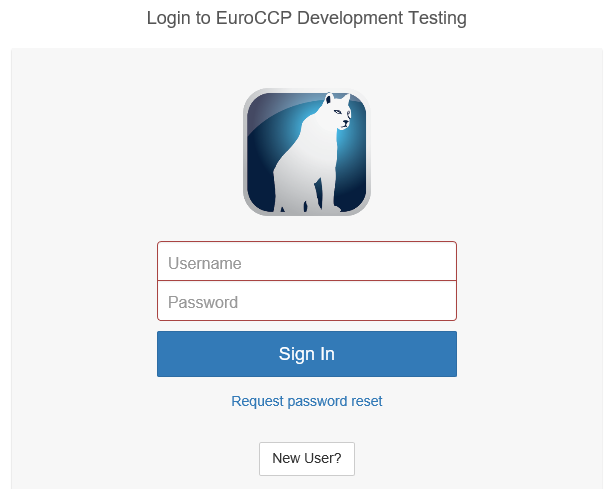
Click on the New User? box.
The screen will be displayed, as below.
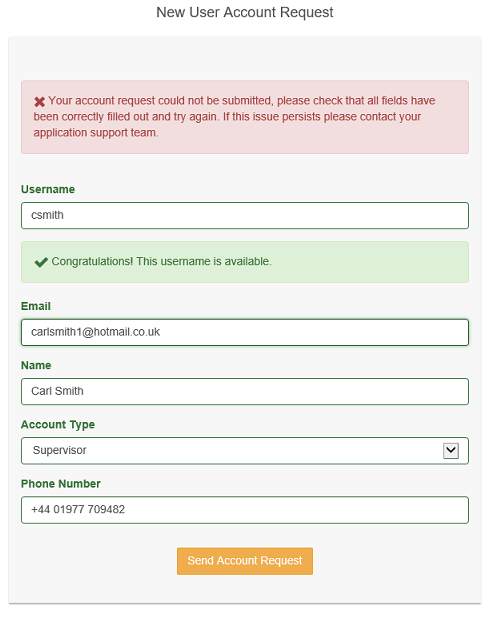
Complete each box with your personal information as per the example below.
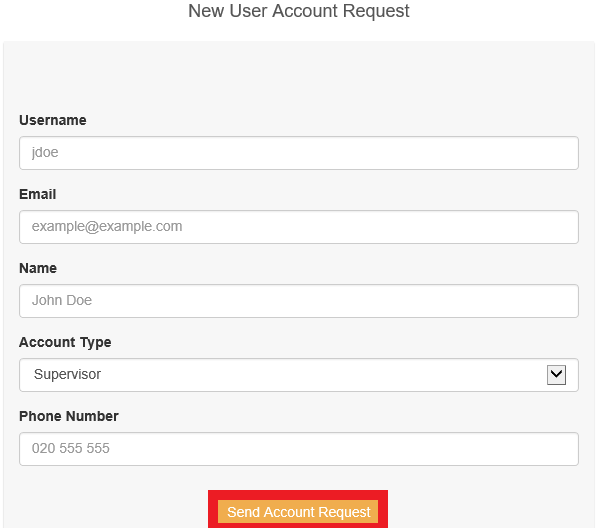
Type your Username. This must be in lower case with no spaces in between letters for example jsmith.
Type your Email address, again all in lower case with no spaces in between for example johnsmith1@hotmail.co.uk
Type your Name for example John Doe.
Select the Account Type from the drop-down box as above for example Supervisor.
Type in your telephone number with the full dialling code for example +44 01977 709482.
Click on Send Account Request as above.
Do not forget to save a copy of this information for your records.
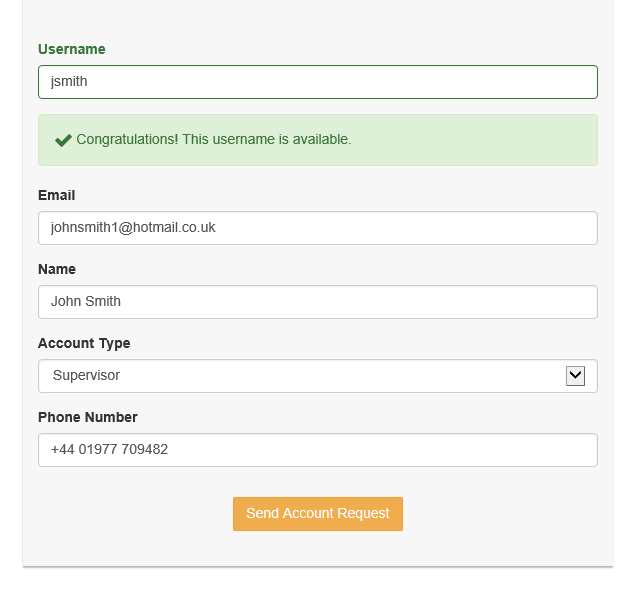
If the username is already in use the box will be displayed, as below and you will need to choose another username. If the username you have
chosen is unavailable the screen will be displayed, as below.
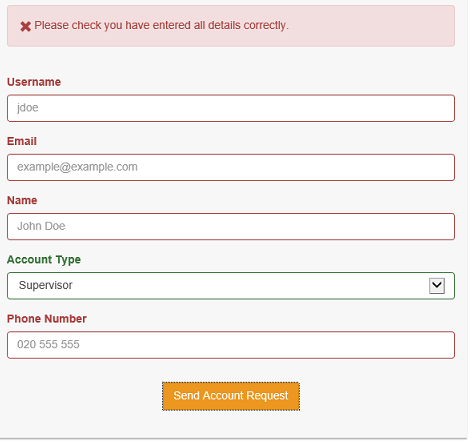
If the box below is displayed check that all fields have been correctly filled out and try again. If this issue persists, please contact The CATS Support Team.
Once a valid account request is submitted the screen will be displayed, as below.
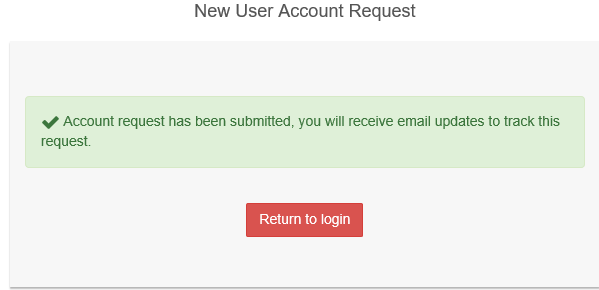
Click on Return to login as above.
You will receive an email now as your account is authorized.
If you do not receive an email within 5 – 10 minutes, please check your SPAM folder. If it is not in your spam folder contact The CATS Support Team.
The first email received should be of the following form.

Hi, John Smith
A request has been made to create an account for this email address. Further email updates will be sent when the request has been approved or rejected.
You will then receive a second email from Accounts as below, with an authorisation code. You will need this code to create your new account.
Hi, Cats Release
Below is the authorization code you need to create your new account.
2T49LH
Use this to create your password and continue.
Enter the Authorisation Code in the box, as below.
Enter your New Password, confirm your New Password and click on Submit.
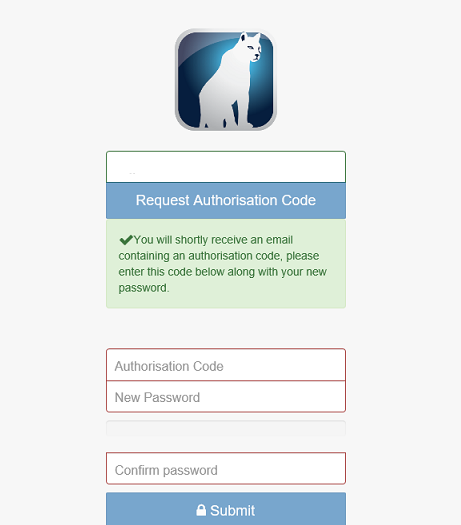
If the box is displayed, as below check that all fields have been correctly filled out and try again. If this issue persists, please contact The CATS Support Team.
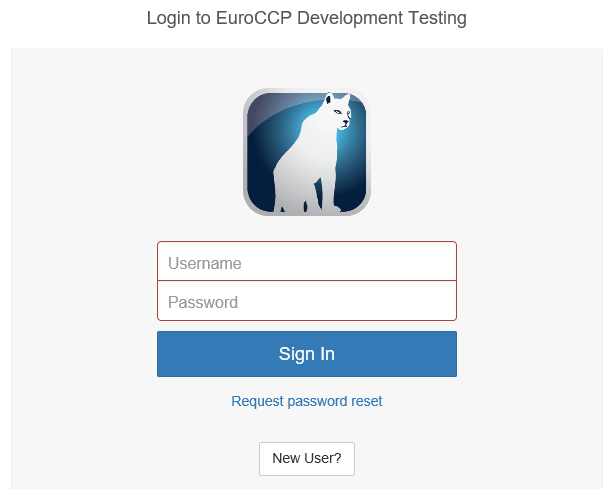
Click on Username and enter your username, which you created earlier.
Click on Password and enter your password.
Click on Sign In.
A screen will be displayed with the Launch button, as below.

Click on the Launch button.
The Java screen will be displayed, as below.

The Downloading application screen will be displayed, as below.

The Verifying application screen will be displayed, as below.

The screen will then display, as below.

Do you want to run this application?

Select the box above.
Click on Run to start the application.
The screen will the be displayed, as below.

The CATS Desktop opens and Diary screen will be displayed, as below.
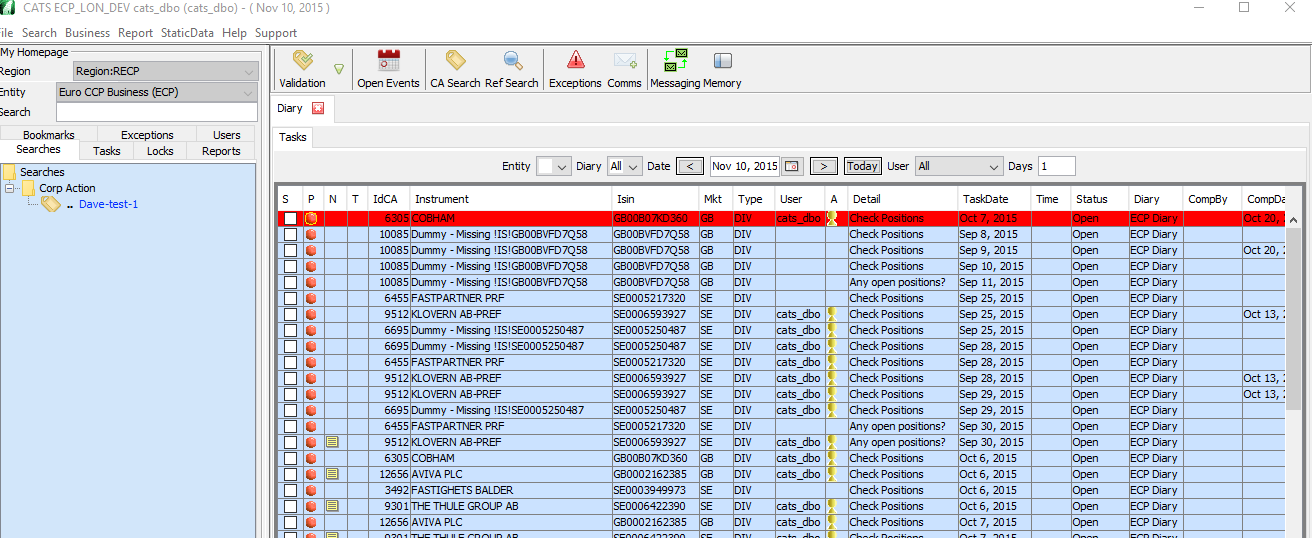
How to Log Into CATS If You Have Previously Logged Into CATS
If you have previously logged into CATS.
Enter your Username.
Enter your Password.
Click on Sign In.
A screen will be displayed with the Launch button, as below.
Click on the Launch button.
The Java screen will be displayed, as below.
The Downloading application screen will be displayed, as below.
The Verifying application screen will be displayed, as below.
The screen will then display, as below.
Do you want to run this application?
Select the box above.
Click on Run to start the application.
The screen will the be displayed, as below.
The CATS Desktop opens and Diary screen will be displayed, as below.
How to Reset Your Password
If you have previously logged into CATS but you have forgotten your password.
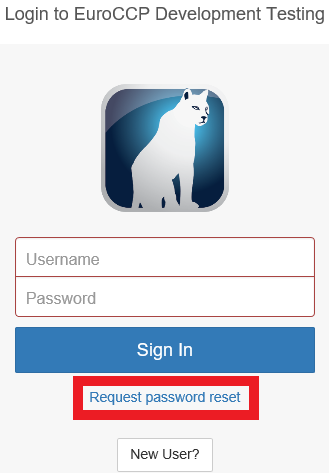
Enter your Username.
Click on Request password reset.
The screen will be displayed, as below.
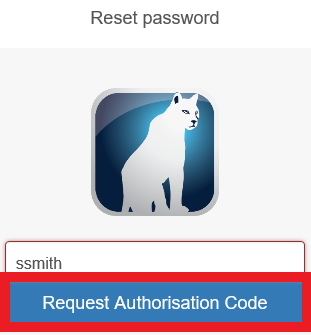
Click on Request Authorisation Code.
The screen will be displayed, as below.
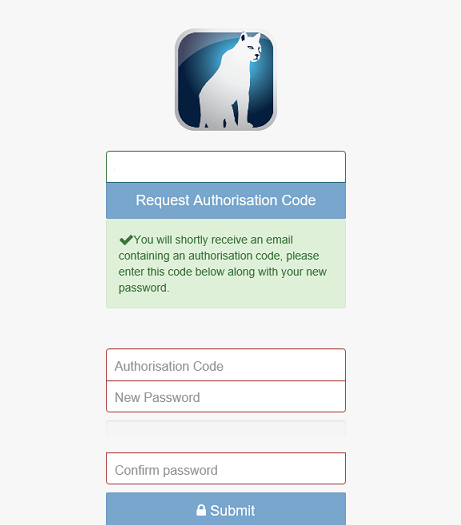
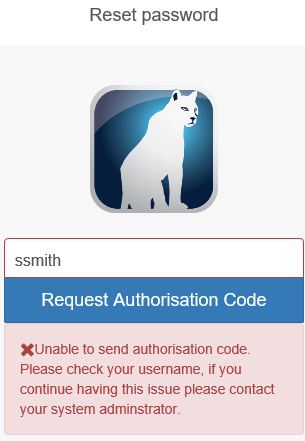
If the screen below appears, re-try to log in using your Username, if you are still unable to log in please contact The CATS Support Team.
You will receive an email, as below.
Hi, Cats Expert User Below is the authorization code you need to complete your password reset. 60OFF6
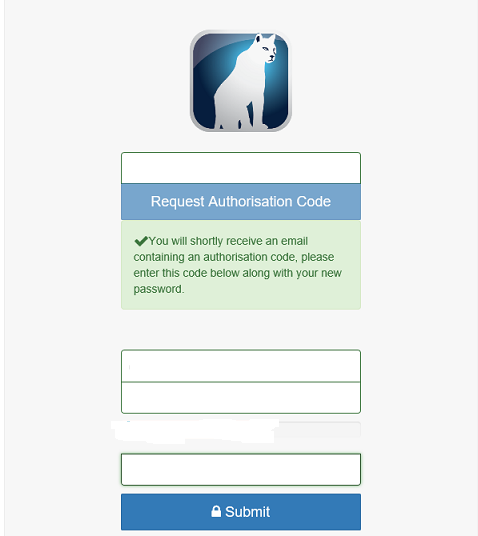
Enter the Authorisation Code in the box below.
Enter your New Password, confirm you New Password and click on Submit.
A screen will be displayed with the Launch button, as below.
Click on the Launch button.
The Java screen will be displayed, as below.
The Downloading application screen will be displayed, as below.
The Verifying application screen will be displayed, as below.
The screen will then display, as below.
Do you want to run this application?
Select the box above.
Click on Run to start the application.
The screen will the be displayed, as below.
The CATS Desktop opens and Diary screen will be displayed, as below.
Account Management
From the main login screen.
Select ADMIN.
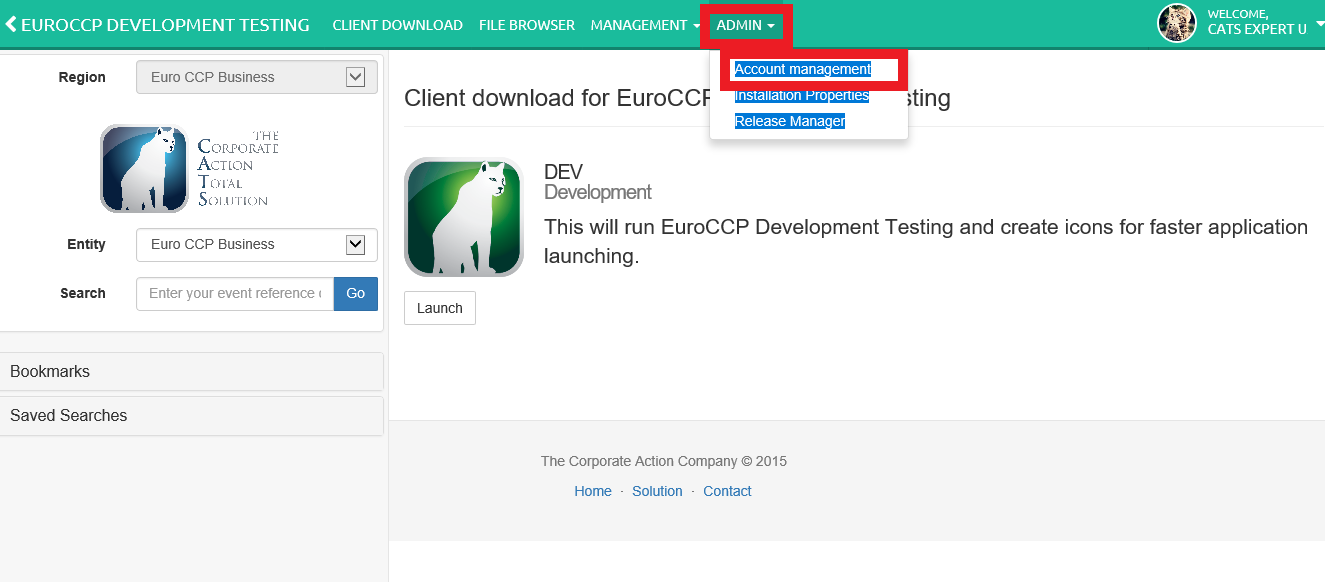
Select Account Management.
The page will be displayed, as below.
To Deactivate an account.
Select Deactivated Accounts.
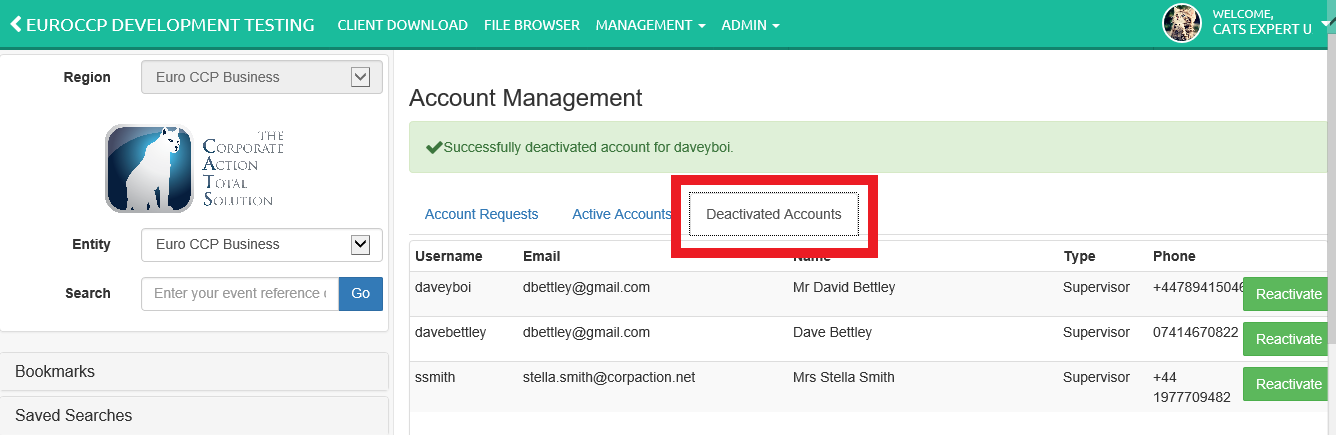
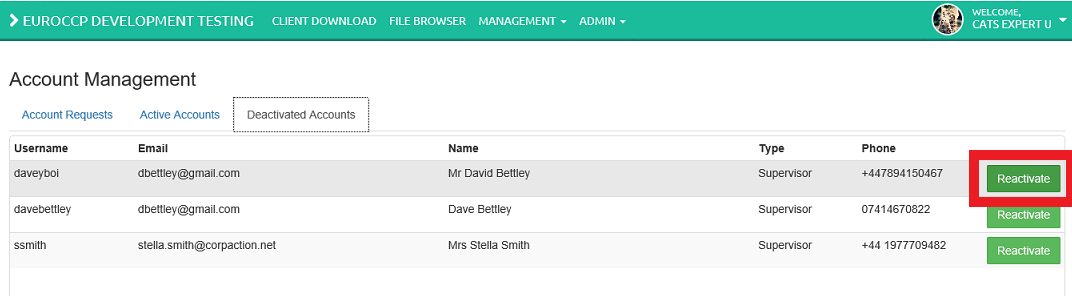
Choose the account you wish to reactivate.
Click the Reactivate tab.
The account will be removed from the page and will now appear in the Active Accounts, as displayed below.
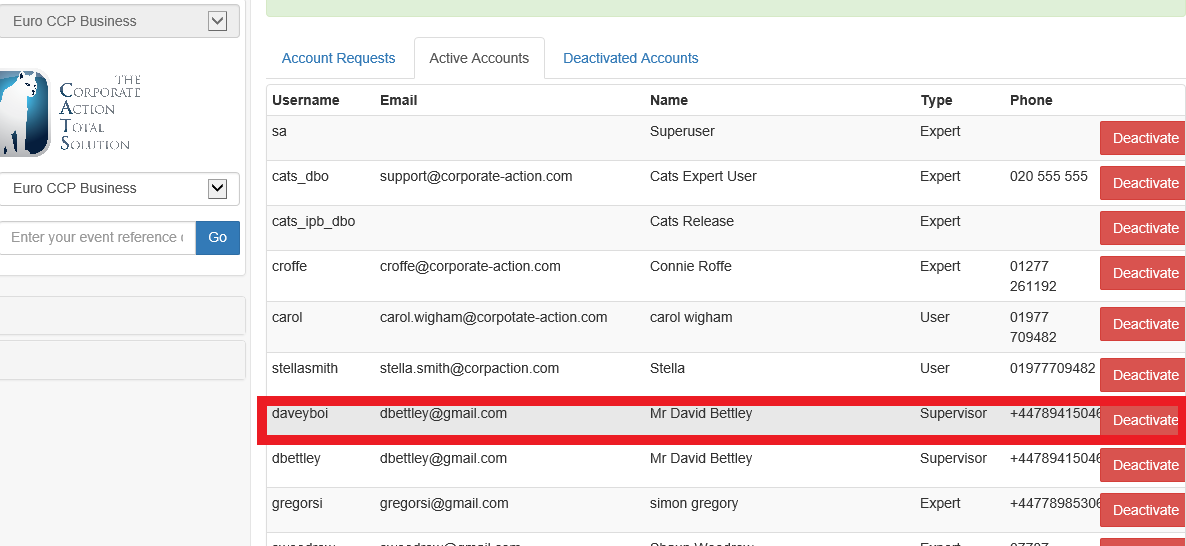
Follow the same procedure to Activate Accounts.
Troubleshooting
If at any time during attempting to log in to CATS, the screen appears as below, re-try to log in using your Username. If you are still unable to log in, please contact The CATS Support Team.
| User Acceptance Testing (UAT) | - | http://catstst.euroccp.prod/ |
| Production | - | http://catstst.euroccp.prod/ |
CA Event Capture and Cleansing
This provides a list of procedures for the capture and cleansing of corporate action announcements within the CATS application.
How to Create a New Corporate Action
When you create Corporate Actions, it is against a master instrument reference (an ISIN) that would create corporate actions
against all of the other cross references associated with that instrument.
To create a corporate action from within the CATS application.
Select the Business menu.
Select Corp Action.
Select New Corp Action (Manual).
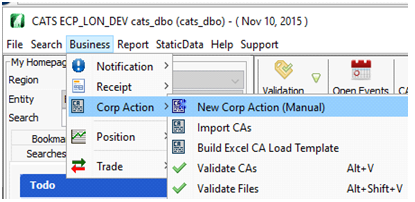
The Corp Action New entry screen is displayed, as below.

Click the Lookup button in the Instrument Details section.
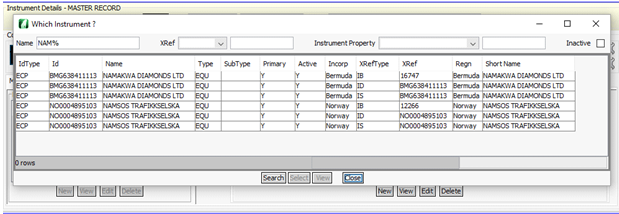
The Which Instrument? screen will be displayed, as below.
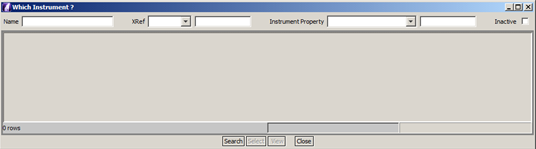
You can search for the selected instrument by entering a value in the Name field. You can use a % character for a wildcard search.
For example: NAM% would list all instruments starting with the text NAM.
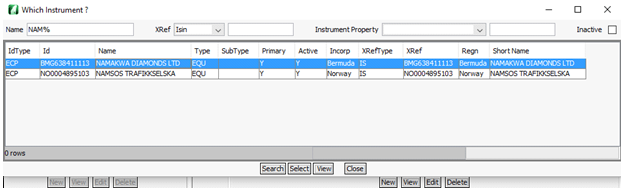
You can search for the selected instrument by cross reference.
Select the XRef type from the XRef drop-down box and enter the cross reference value.
Select Search.
Inactive instruments are included in the search if the check box is selected.
The screen will be displayed, as below.
Highlight the required instrument.
Click Select.
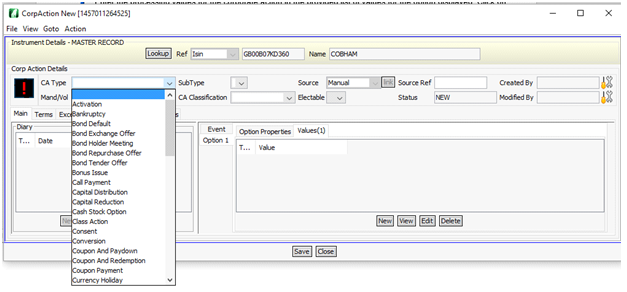
The screen will be displayed, as below.
CATS holds a default set of required dates and values for each corporate action.
From the drop-down box is displayed, as below.
Select New in the Diary section if there are any missing date types.
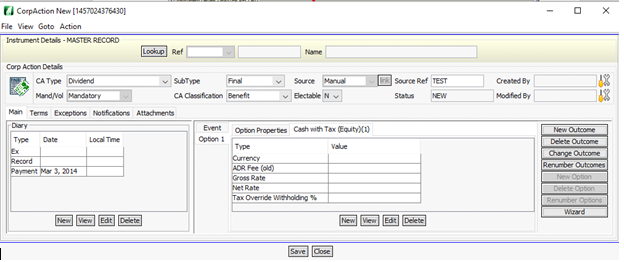
The screen is displayed, as below.
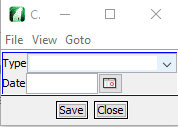
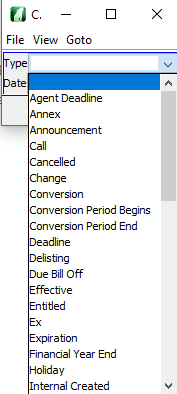
Select Type from the dropdown box.
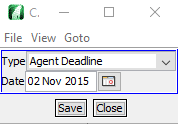
Enter Date.
Click Save.
Enter required dates for each type in the diary section, as above.
Click on the date.
Select View to view.
Select Edit to edit.
Select Delete to delete.
The Value box of each Option and Type need to be completed as shown above.
Select New if there are any missing Types or delete any that are not required.
Select Edit to edit.
Select View to view.
Select Delete to delete.
For example:
Click on Currency.
Company Confidential
